Using the web portal
View your ECUs, credits, devices and account details in a browser, and manage the computers that can run the desktop client.
In this guide
What the portal is for
The web portal shows your NCDS account in a browser. It handles the tasks that don't need a programmer or ECU connected.
You can also create your NCDS account in the portal. See Creating and managing your account.
Anything that needs connected hardware stays in the desktop client: detecting an ECU, flashing, Flash to Stock, Return to Stock, transferring an ECU in, and registering or updating a device.
The portal never counts as one of your authorised computers. You can always reach it, even when the desktop client has refused a new computer.
Signing in
You sign in with the same email and password you use in the desktop client.
- Go to ncds.nizpromarine.com and click Sign In. You can also click My Account in the desktop client, which opens the portal in your browser. Don't have an account yet? Click Create account under the Sign In button (see Creating and managing your account).
The Customer Portal sign-in page. - Enter your email address and password. These are the same sign-in pages the desktop client uses (see Installing and signing in). If you've forgotten your password, click Forgot password? on the password page and follow the steps in Creating and managing your account. You're returned to the portal when you're done.
- The portal opens on My ECUs.
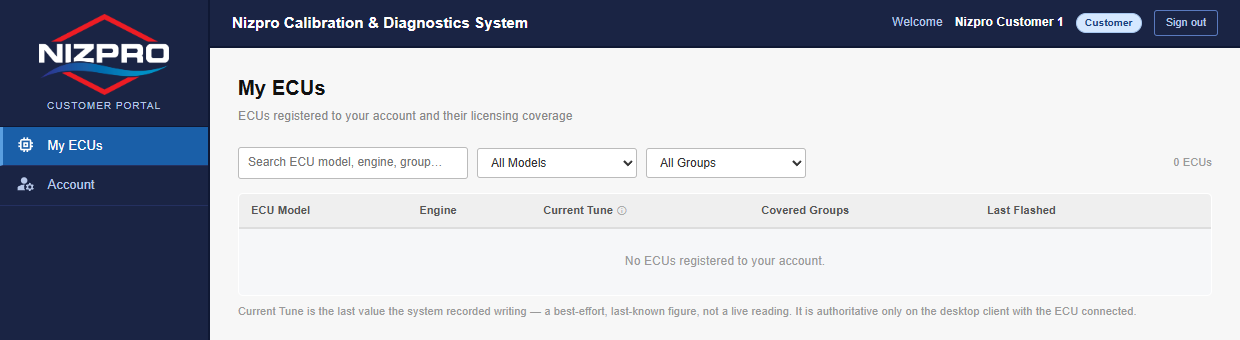
My ECUs after signing in, on a customer account with no ECUs yet.
Use the menu on the left to move between sections. The bar along the top shows your name, a badge with your account type, and Sign out.
The menu depends on your account type. A customer account shows My ECUs and Account. Once you connect a programmer, your account becomes DIY and also shows Credits and My Devices, the same as a dealer account.
My ECUs
My ECUs lists the ECUs registered to your account and the categories each one is licensed for.
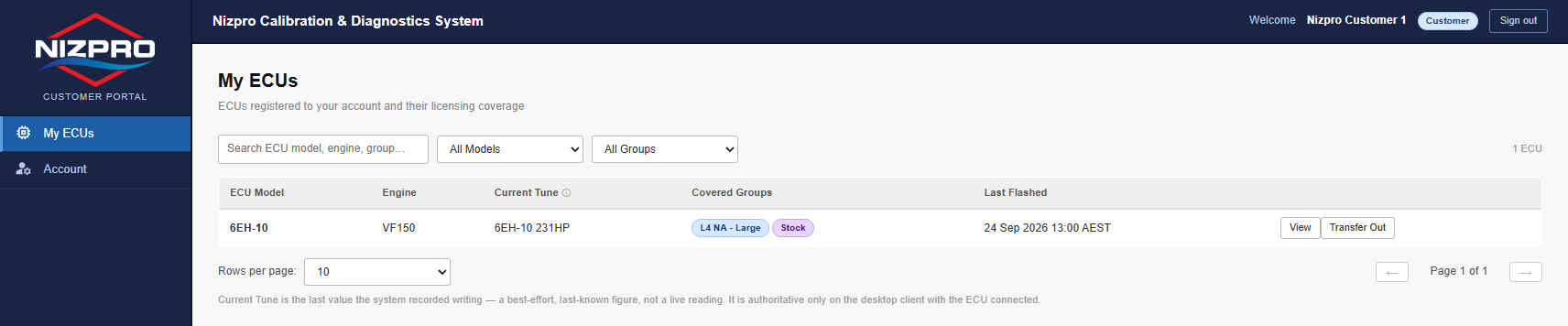
Each row shows:
- ECU Model and Engine.
- Current Tune: the last tune the system recorded writing to the ECU. It's a last-known value, not a live reading. Only the desktop client, with the ECU connected, shows what's actually on it.
- Covered Groups: the categories the ECU is licensed for. Every licensed ECU also shows Stock, which is what lets you Flash to Stock at no cost.
- Last Flashed: when the ECU was last written.
Search by ECU model, engine or group, or narrow the list with the All Models and All Groups filters. For a long list, use Rows per page and the arrows to page through.
ECU Detail
Click View on a row to open ECU Detail.
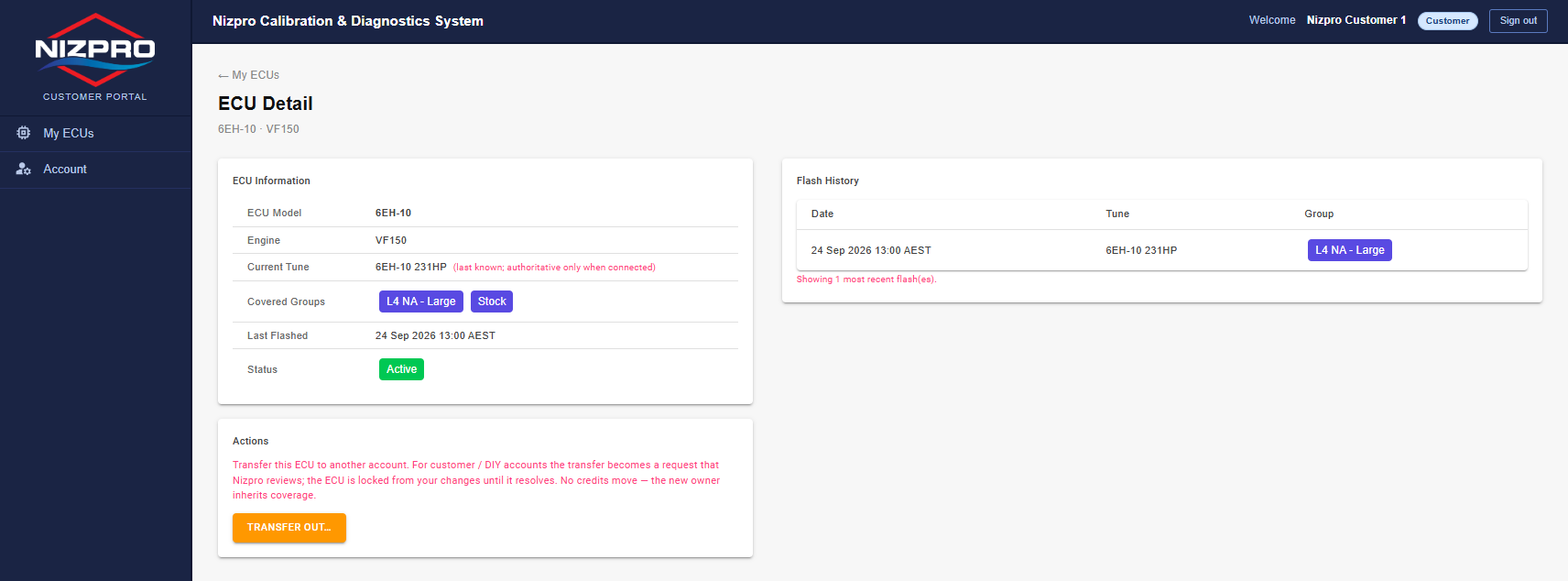
- ECU Information: the same details as the list, plus the ECU's Status.
- Flash History: the most recent flashes, with the date, tune and group of each.
- Actions: TRANSFER OUT..., to transfer the ECU to another account.
Click ← My ECUs to go back to the list.
Recently Worked On (dealers)
On a dealer account, My ECUs has a second list below your own ECUs: Recently Worked On. It shows the ECUs you've flashed or serviced for customers. You don't own these.
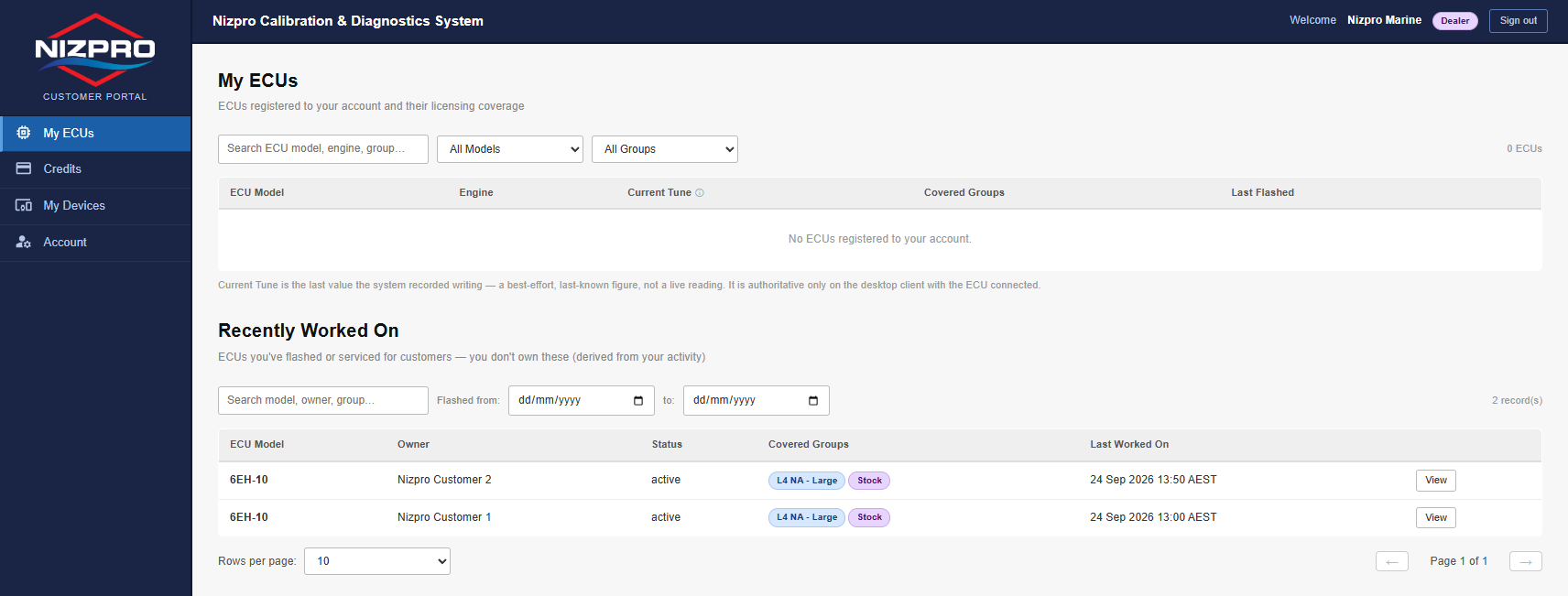
Each row shows the ECU Model, its Owner, its Status, the Covered Groups, and when you Last Worked On it. Search by model, owner or group, or set the Flashed from and to dates to narrow the list.
These rows have View only. Transfer Out is offered only on ECUs you own.
Transferring an ECU out
When you sell or pass on an engine, transfer its ECU to the new owner's account. Click Transfer Out on the ECU's row, or TRANSFER OUT... on its ECU Detail page.

No credits move, and the new owner inherits the ECU's coverage. On a customer or DIY account, the transfer becomes a request that Nizpro reviews, and the ECU is locked from your changes until it's resolved. For the full steps, see Transferring ECU ownership.
Credits (DIY and dealers)
Credits appears on DIY and dealer accounts. It shows your unspent credit balance by licence group: the credits you own and haven't used yet.
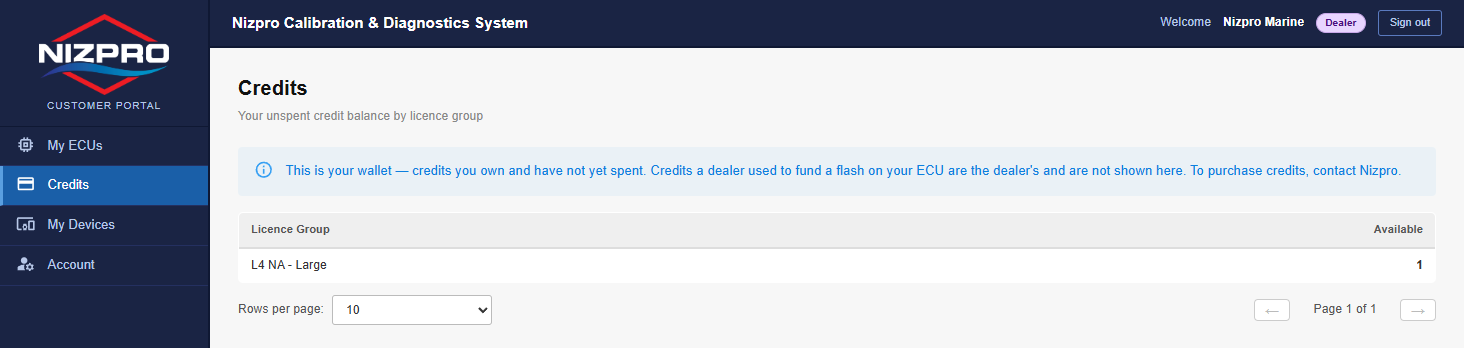
Credits a dealer used to flash your ECU belong to the dealer and aren't shown here. To see which categories an ECU is licensed for, look at the ECU in My ECUs.
You can't buy credits in the portal. To purchase credits, contact Nizpro at sales@nizpromarine.com.
If your programmer is transferred to another account, a DIY account returns to a customer account and Credits is no longer shown. Your unused credits stay on the account and reappear if a programmer is linked to it again.
My Devices (DIY and dealers)
My Devices shows the hardware registered to your account, such as your Nizpro programmer.
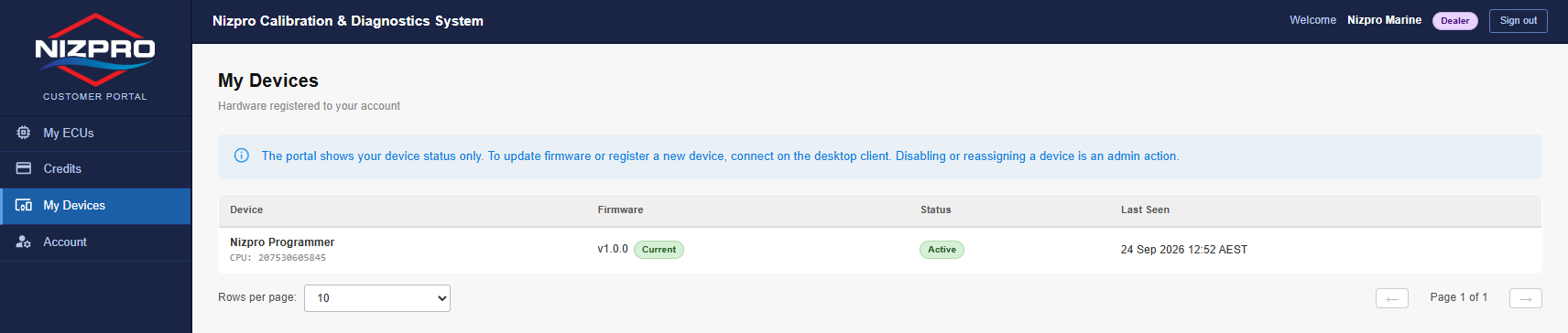
- Device: the device name and its CPU serial number.
- Firmware: the installed firmware version, marked Current when it's up to date.
- Status: Active, or Disabled, contact Nizpro.
- Last Seen: when NCDS last saw the device.

A disabled device can't be used to detect or flash. Contact Nizpro at sales@nizpromarine.com to have it re-enabled.
The portal only shows device status. To update firmware or register a new device, connect it to the desktop client. See Setting up your programmer. Disabling or reassigning a device is done by Nizpro.
Your profile
Your profile is on the Profile tab under Account. It shows your name, your email address, and whether your email is verified. Dealer accounts also have a Business name.
You can change your name. Dealers can also change their business name. Nothing else on the profile can be changed.
- Click Account. The Profile tab opens.
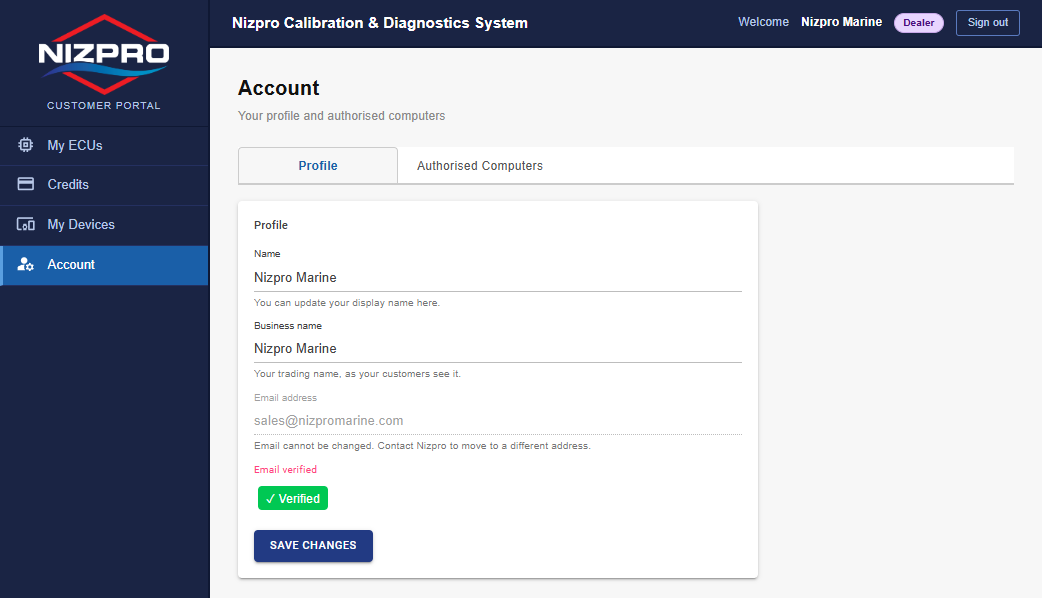
The Profile tab for a dealer account. DIY and customer accounts have no Business name. - Type your new name in Name. Dealers can also change Business name, your trading name as your customers see it. Click SAVE CHANGES.
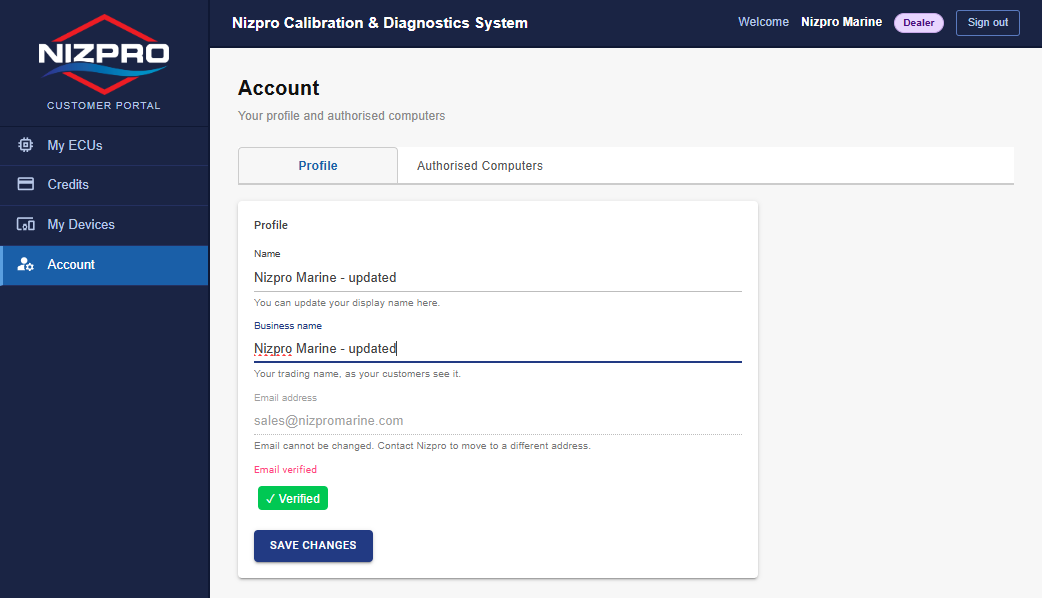
A dealer changing the name and business name. - You'll see Saved.
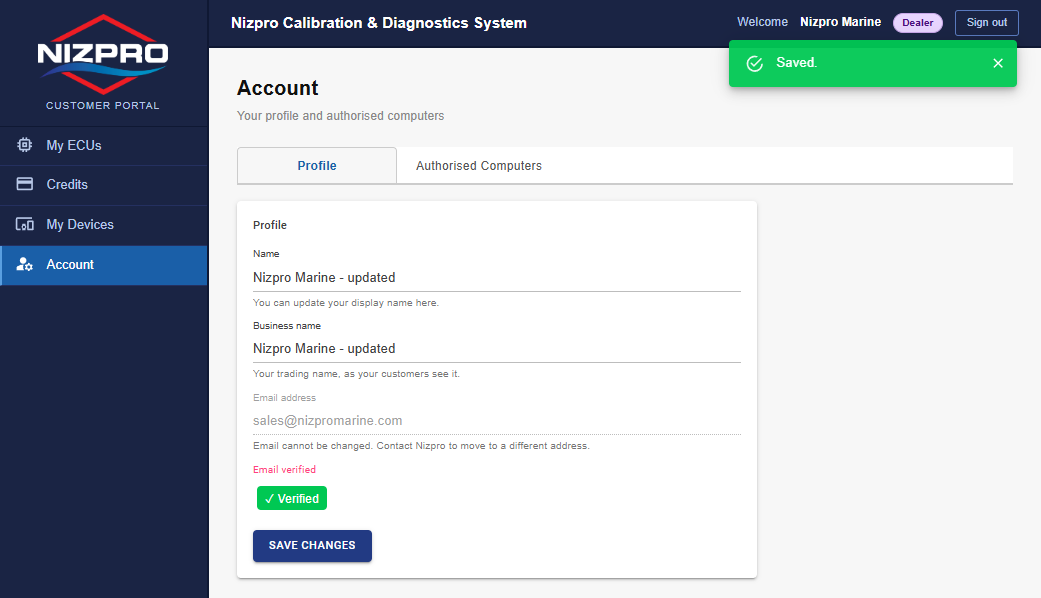
Saved.
Your email address is your account identity and can't be changed. If you need a different address, contact Nizpro at sales@nizpromarine.com. Nizpro moves your ECUs, credits and devices to a new account for you.
Authorised computers
Your account can run the desktop client on a limited number of computers. The default is three. A computer is added the first time you sign in on it, as long as your account has a free slot.
You manage these computers only in the portal. The desktop client can't remove one.
De-register a computer
- Click Account, then the Authorised Computers tab. Each computer is listed by name, with when it was Last Used. The badge above the list shows how many slots are in use.
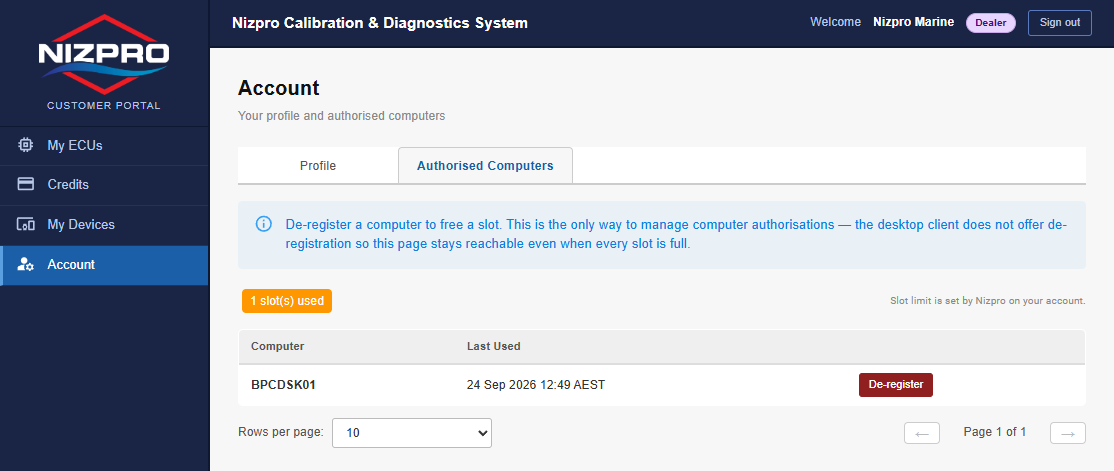
The Authorised Computers tab. - Click De-register next to the computer you no longer use. There's no confirmation step, so check you've picked the right one.
- You'll see Computer de-registered. and the computer is removed from the list.
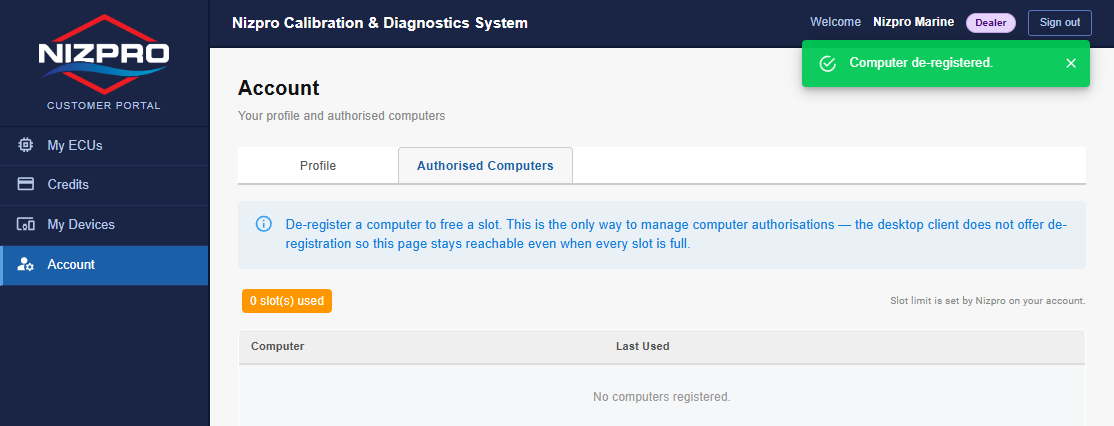
Computer de-registered.
De-registering doesn't block a computer for good. If you sign in on it again later, it's added back, as long as there's a free slot.
If the desktop client shows Installation Limit Reached on a new computer, de-register a computer here, then sign in on the new computer again (see Installing and signing in to the desktop client).
Need more computers?
Your limit is set by Nizpro. If you need more computers, for example several workshop benches, contact Nizpro at sales@nizpromarine.com.