Creating and managing your account
Create your NCDS account in any browser, activate the account your dealer created, and reset your password.
In this guide
Ways to get an account
- You create it yourself. Anyone can create an account from the web portal, in any browser. You don't need the desktop client or a programmer. The desktop client's sign-in screen has the same option.
- Your dealer creates it (customers). If a dealer works on your ECU and you don't have an account yet, they create one for you with your name and email address. You then activate it from an email.
- Dealer accounts are set up by Nizpro. Contact sales@nizpromarine.com.
You can create an account before you need it. For example, while you wait for your DIY kit to arrive, or so the seller of an engine can transfer its ECU to you. A transfer moves the ECU and the categories it's licensed for into your name.
A new account is a customer account. It becomes a DIY account when you connect a Nizpro programmer (see Setting up your programmer).
Your email address becomes your account identity and can't be changed later (see How NCDS works).
Create your own account
You can start from the web portal or the desktop client. The steps are the same. Only the starting point is different.
- Go to ncds.nizpromarine.com and click Create account under the Sign In button. In the desktop client, click Create account on the sign-in screen instead. The same pages open in a Sign in to NCDS window.
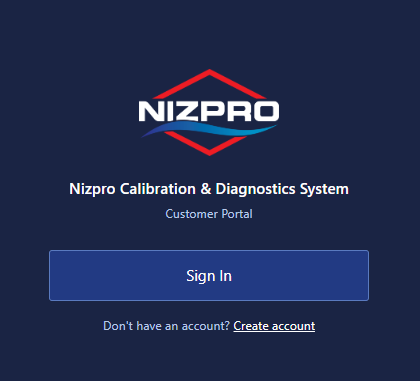
The Customer Portal sign-in page. - On Create account, enter your email address and click Next.
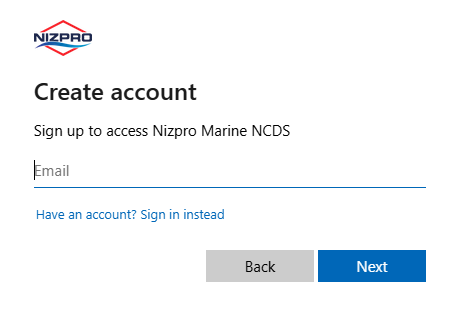
Enter your email address. - Nizpro Marine NCDS emails you an Account verification code. The code only works for 30 minutes.
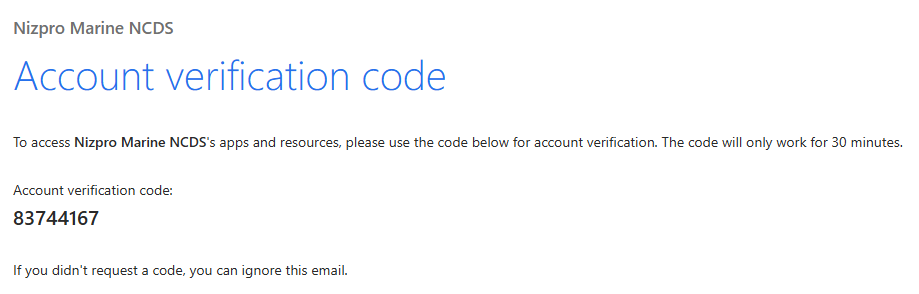
The verification code email. - On Enter code, enter the code and click Next.
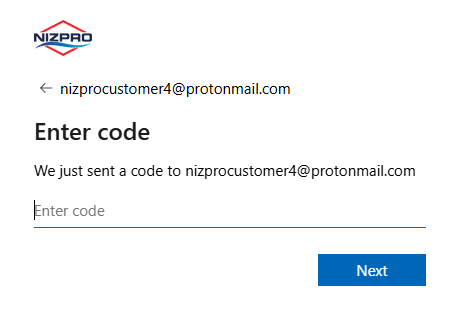
Enter the code. - On Add details, enter your password twice and your Display Name, then click Next. The display name is the name shown on your account. You can change it later in the portal (see Using the web portal). We recommend using your first and last name.
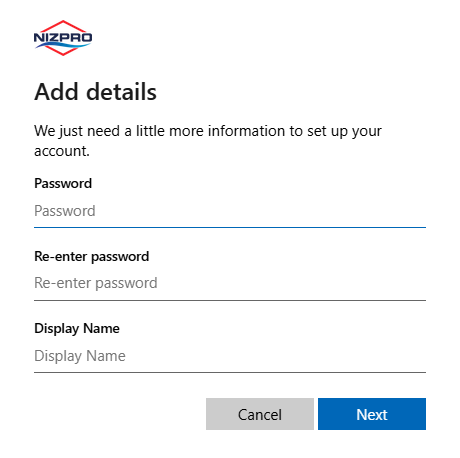
Add your password and display name. - You're signed in automatically: to the web portal if you started there, or to the desktop client if you started there.
If you already have an account
If you enter an email address that already has an account with a password, you won't get a code. You go straight to the password page instead. Enter your password to sign in. If you've forgotten it, click Forgot password? and follow the steps in Your password.
If your dealer created your account and you haven't activated it yet, you do get a code. Follow the steps above. They set your password on the account your dealer created, and your ECUs are there when you sign in.
Activate an account your dealer created (customers)
When a dealer creates an account for you, Nizpro emails you straight away so you can activate it. If you can't find the email, you can use Create your own account with the same email address instead. It sets your password in the same way.
- Open the activation email and click Activate account.
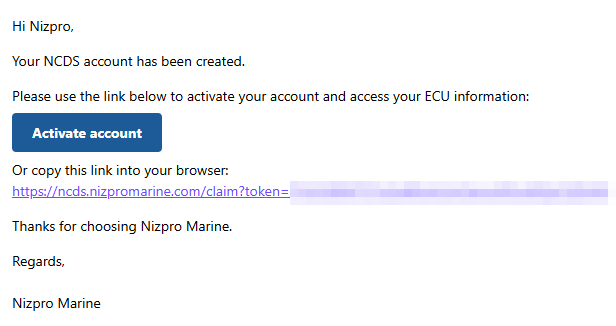
The activation email. - The page that opens shows Email verified! Enter a password in New password and Confirm password, then click SET PASSWORD & CONTINUE.
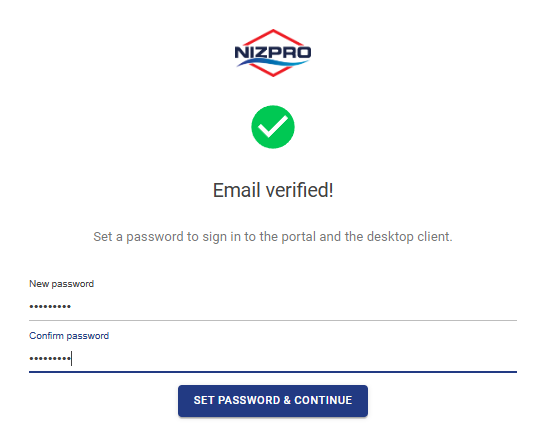
Set your password. - You'll see Password set. You can now sign in with your email and password. Click CONTINUE TO NCDS.
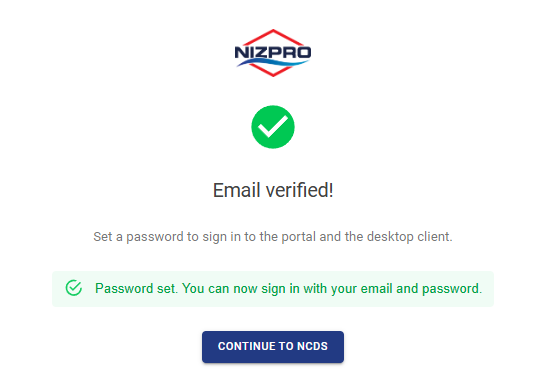
Your password is set. - You're returned to the portal sign-in page. Click Sign In and sign in with your email address and new password to see your ECUs (see Using the web portal).
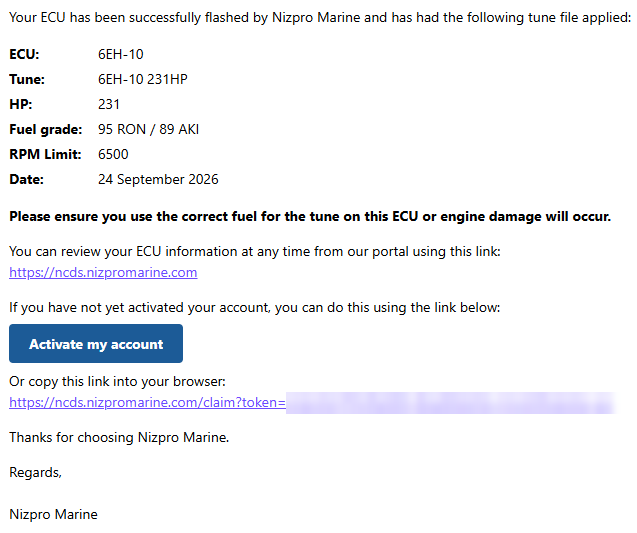
Your dealer may also send you a service email after working on your ECU. Until you've activated, it includes Activate my account, which opens the same page.
If you sign in before activating
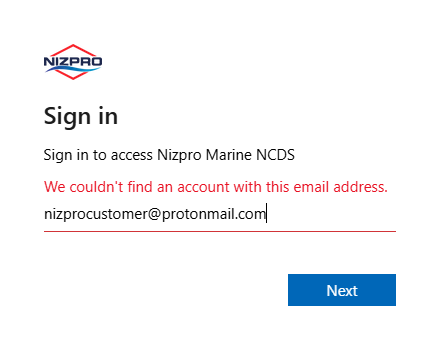
Until you've set your password, the sign-in page says We couldn't find an account with this email address. Open the activation link, set your password, then sign in again.
If you need a new activation link, contact your dealer or sales@nizpromarine.com.
If you open the link again
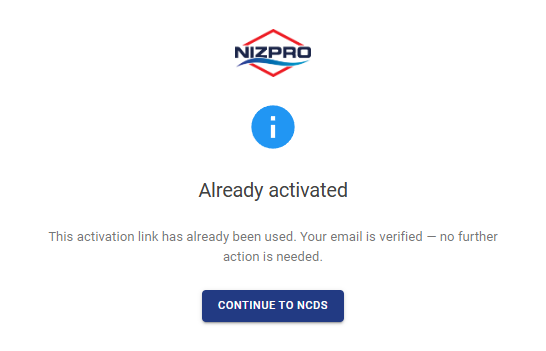
An activation link works once. If you open it again, the page says Already activated: the link has been used and your email is verified, so there's nothing more to do. Click CONTINUE TO NCDS to go to the portal sign-in page.
Your password
You use the same password for the web portal and the desktop client. To reset it, or to change it, use Forgot password? on the password page. It sets a new password even if you still know your current one. You can start it from the web portal or the desktop client.
- Start signing in: click Sign In in the web portal or the desktop client, enter your email address, and click Next.
- On the password page, click Forgot password?
- Confirm it's you. Click Email code to your address, then enter the code emailed to you and click Verify.
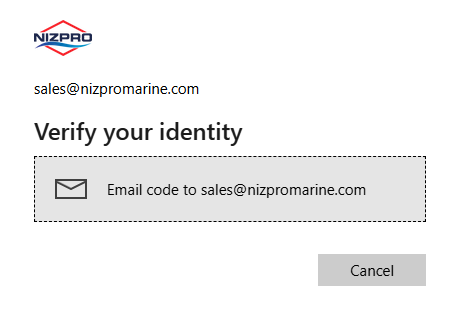
Choose to email a code. 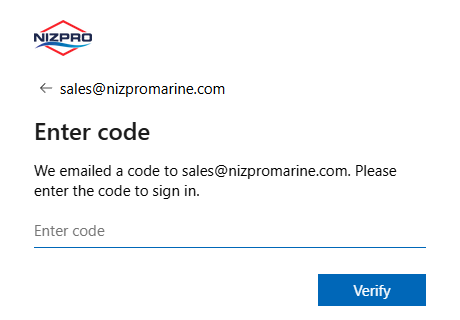
Enter the code. - Enter your new password twice and click Reset password. It must be at least 8 characters and include 3 of the following: an uppercase letter, a lowercase letter, a number, or a symbol.
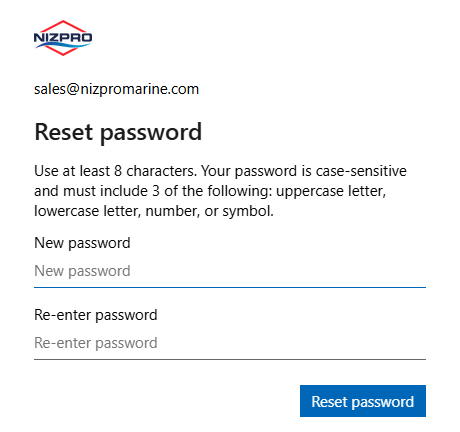
Enter your new password. - You're told your password has been updated. Click Next.
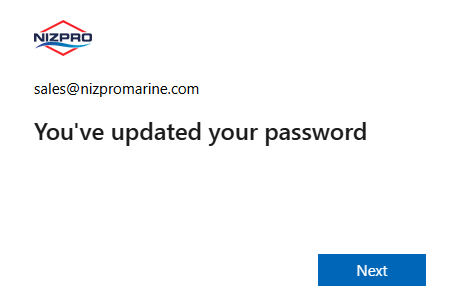
Your password is updated.
You're then signed in automatically: to the web portal if you started there, or to the desktop client if you started there.
Next steps
- View your ECUs in the web portal: see Using the web portal.
- If you have a Nizpro programmer, install the desktop client and sign in (see Installing and signing in to the desktop client), then connect the programmer (see Setting up your programmer).