Installing and signing in to the desktop client
Get the NCDS desktop client onto your Windows PC and sign in.
In this guide
Before you start
- A PC running Windows 10 or 11, 64-bit.
- An internet connection. The client checks your account online when you sign in.
- An NCDS account. If you don't have one yet, create it first in the web portal (see Creating and managing your account). You can also create one from the client's sign-in screen.
Download and install
The client installs for your Windows user only and doesn't need administrator rights.
- Go to the Downloads page and click Download NCDS-win-Setup.exe.
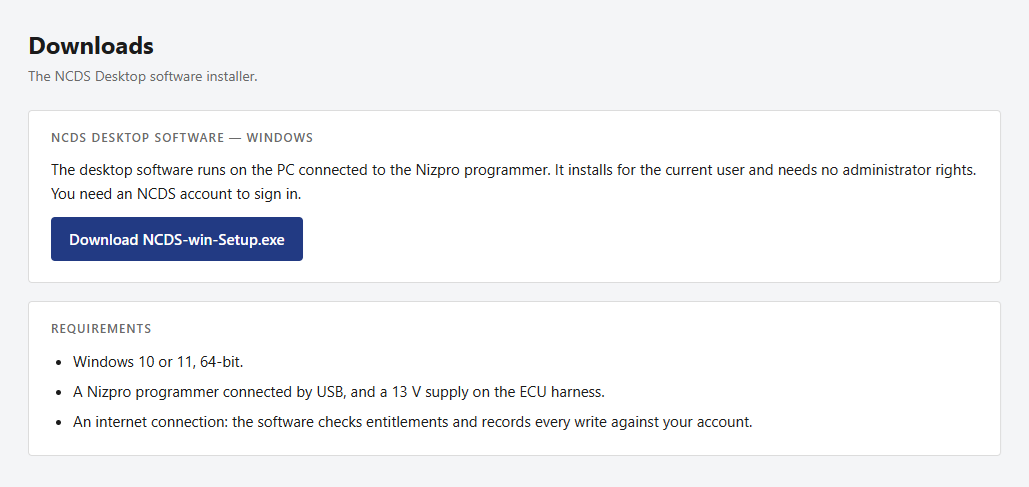
The Downloads page. - If your browser asks what to do with the file, choose Save. It saves to your Downloads folder unless you pick another location.
- Wait for the download to finish.
- Open NCDS-win-Setup.exe, either from your browser's download list or from the folder you saved it to.
- The installer runs on its own. It shows a progress window while it sets up NCDS.
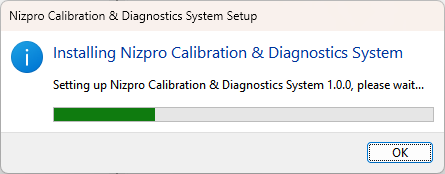
Installing Nizpro Calibration & Diagnostics System. - When the install finishes, NCDS opens on the sign-in screen.
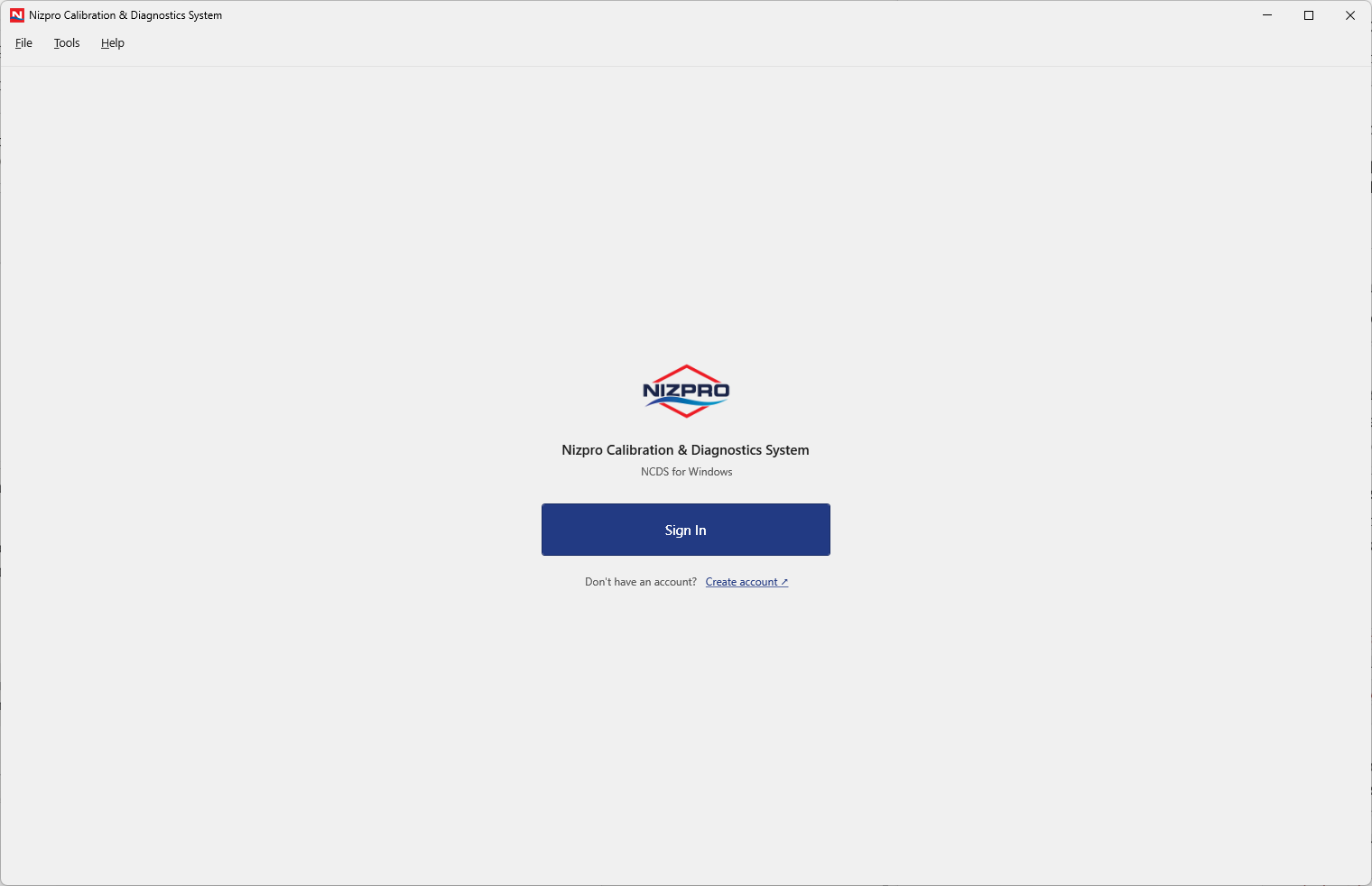
The sign-in screen. No account yet? Click Create account and follow the steps in Creating and managing your account. You're signed in automatically when you finish.
The installer also adds a Nizpro Calibration & Diagnostics System shortcut to your desktop and Start menu. Use either one to open NCDS next time.
Sign in
You sign in with the same email and password you use on the web portal. There's no separate password for the client.
- Click Sign In. The Sign in to NCDS window opens.
- Enter your email address and click Next.
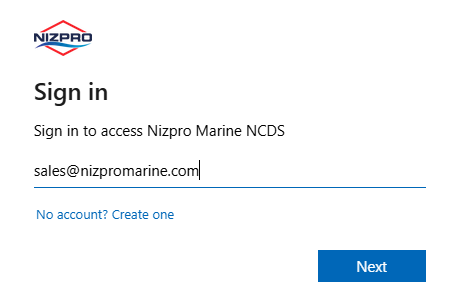
Enter your email address. - Enter your password and click Sign in.
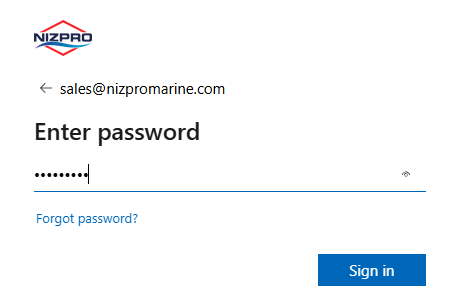
Enter your password.
Once you're signed in, NCDS opens on the Main tab. For a tour of the window, see the Desktop client interface overview.
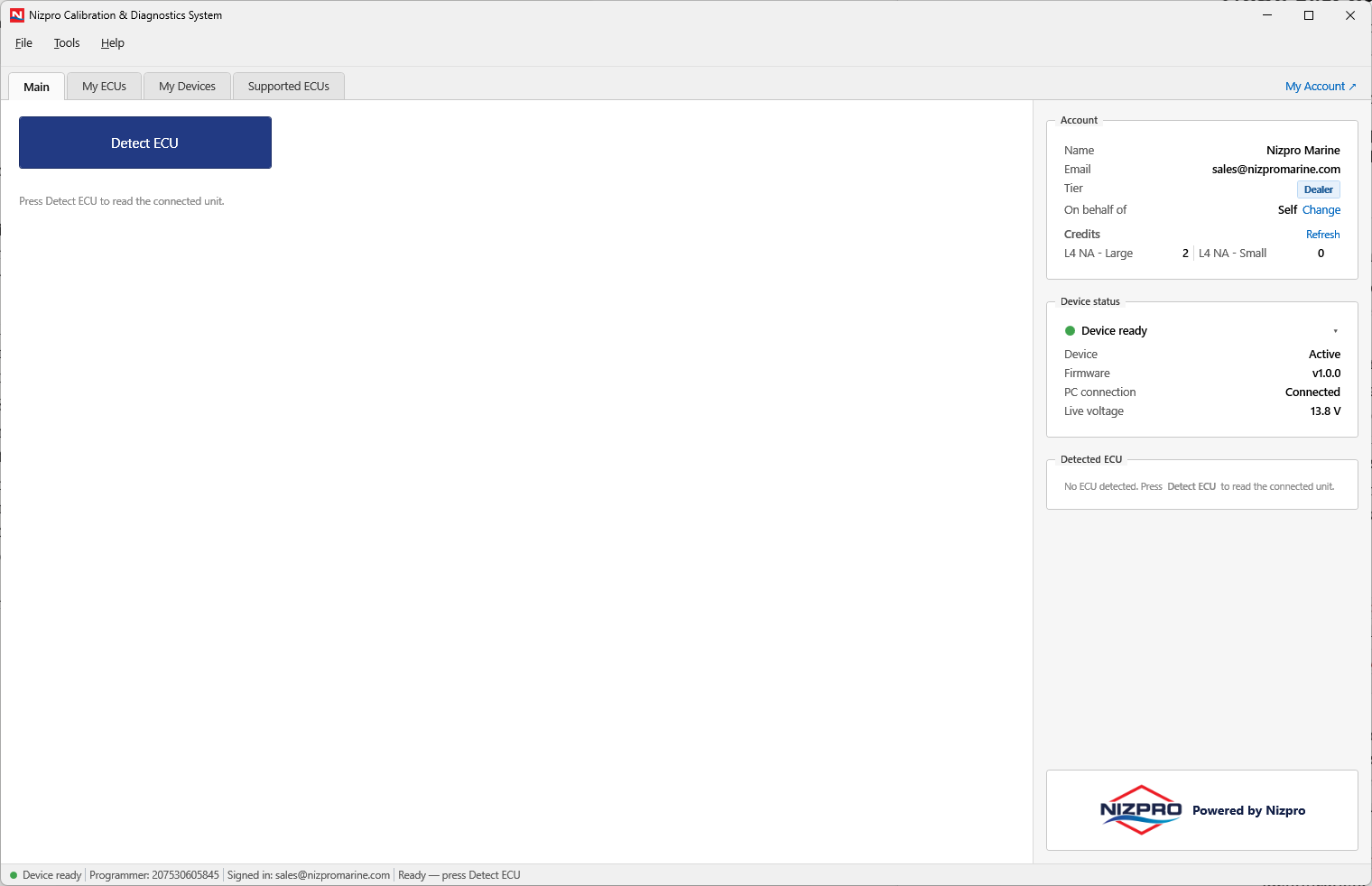
Until a programmer is connected, Detect ECU is unavailable and the client shows Connect programmer device to enable detection. Next, connect your Nizpro programmer: see Setting up your programmer.
Your password
It's the same password you use on the web portal. If you've forgotten it, click Forgot password? on the password page and follow the steps in Creating and managing your account.
Authorised computers
Your account can run the desktop client on a limited number of computers. The default is three.
- The first time you sign in on a computer, it's registered automatically, as long as your account has a free slot.
- If you're already at the limit, the client won't sign you in on the new computer. It shows Installation Limit Reached instead, with the name of the computer you're on.
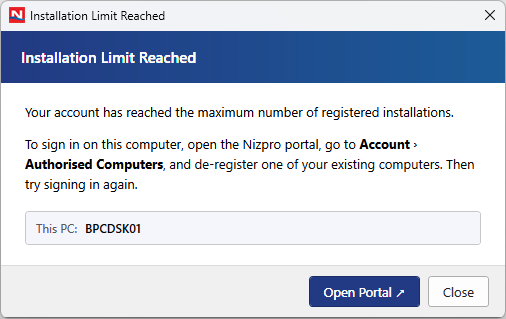
To free a slot, click Open Portal and sign in. Go to Account, open the Authorised Computers tab, and click De-register next to a computer you no longer use. Then sign in on the new computer again. The portal runs in a browser and never counts as one of your computers, so you can always reach it to free a slot. See the Authorised computers section of Using the web portal.
You can be signed in on more than one computer at the same time, up to your limit. That suits a dealer with several benches.