Setting up your programmer
Register your Nizpro programmer, request one that's registered to someone else, and keep it up to date.
In this guide
What the programmer does
Your Nizpro programmer connects your computer to the ECU. You need it to detect an ECU, flash a tune, use Flash to Stock and Return to Stock, and run diagnostics.
A programmer is registered to one account at a time. Registering one on a customer account turns it into a DIY account (see How NCDS works).
When a programmer is connected, the Device status panel shows whether it's ready to use. See Desktop interface overview.
The programmer at a glance
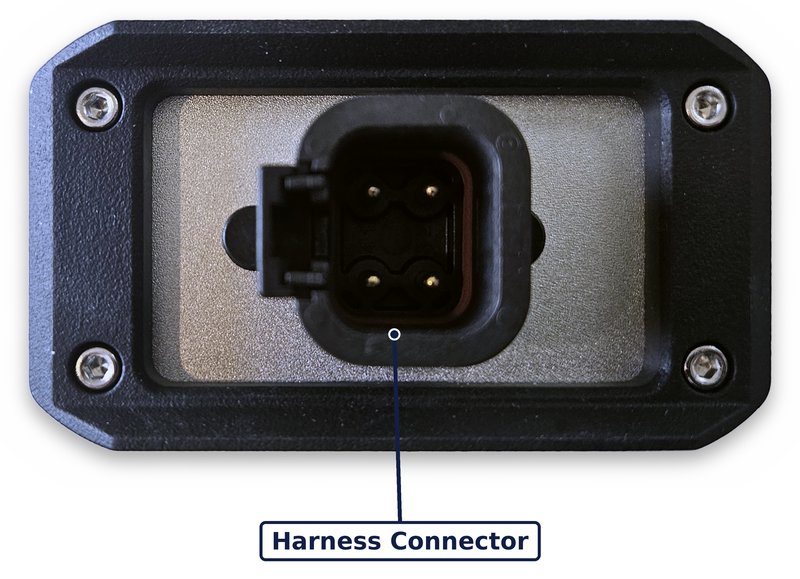
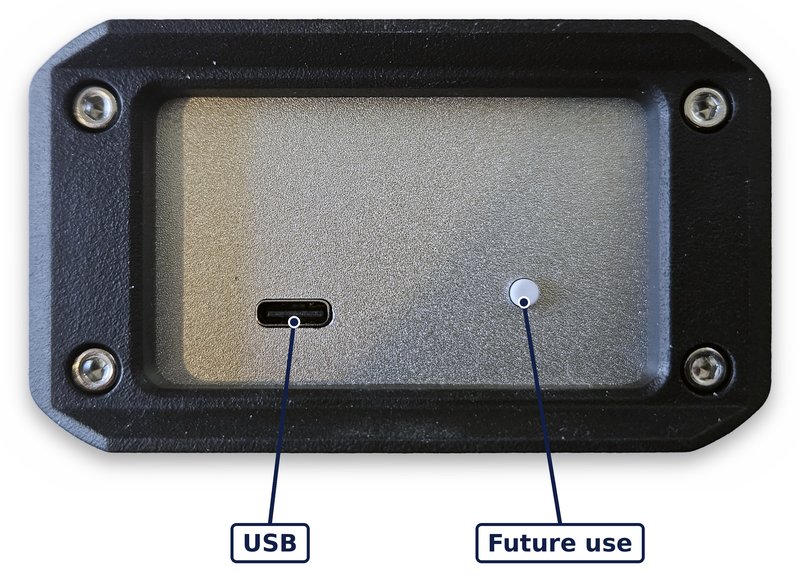
The screen is on the front. The harness connector is at one end and the USB port at the other.
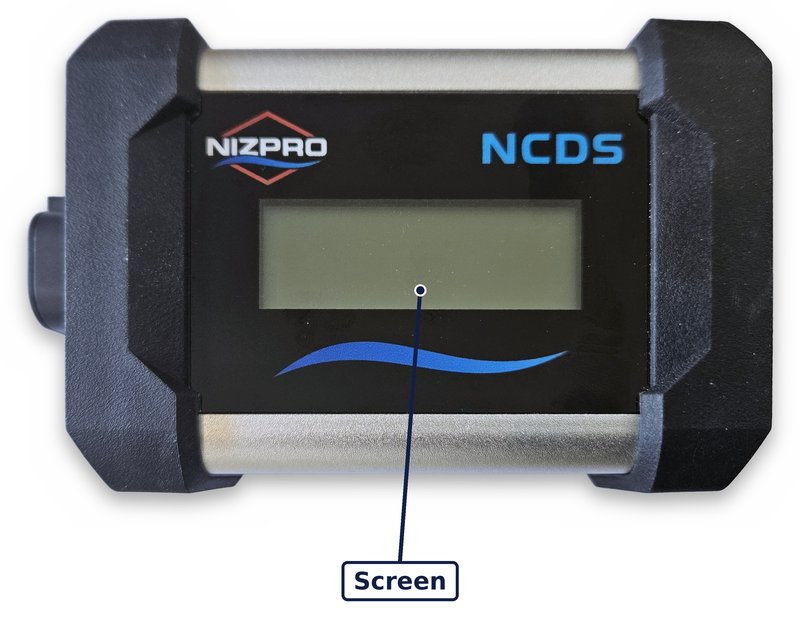
- Screen: shows the programmer's status (see What the display shows).
- Harness Connector: connects the programmer to the ECU harness.
- USB: a USB-C port that connects the programmer to your computer.
- Button: reserved for future use.
What the display shows
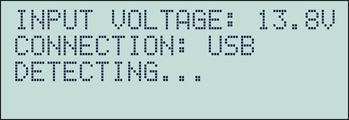
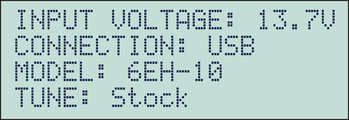
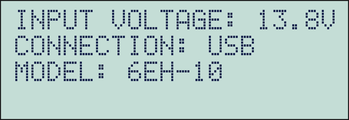
The screen has four lines:
- Line 1, INPUT VOLTAGE: the programmer's input voltage. Always shown.
- Line 2, CONNECTION: how the programmer is connected to your computer, for example USB. Always shown.
- Line 3: the operation in progress, or the ECU model once an ECU has been detected.
- Line 4, TUNE: the tune on the ECU. Shown only when the ECU is licensed.
During an operation
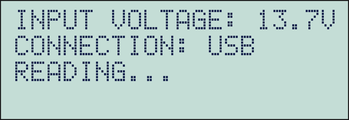
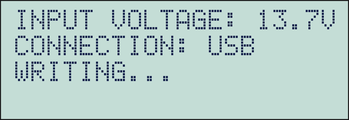
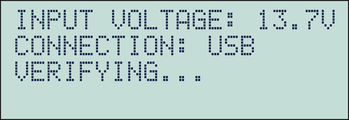
While the programmer is working, line 3 shows what it's doing: DETECTING..., READING..., WRITING... or VERIFYING...
After an ECU is detected
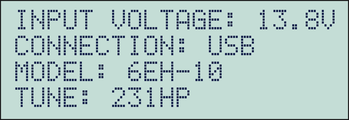
Line 3 shows MODEL, the ECU model that was detected. Line 4 depends on whether the ECU is licensed (see How NCDS works):
- TUNE with a tune name, for example 231HP: the ECU is licensed, and that tune is flashed to it.
- TUNE: Stock: the ECU is licensed, and it has been returned to its stock calibration with Flash to Stock.
- No line 4: the ECU was detected as stock and isn't licensed.
Registering your programmer
Sign in to the desktop client and connect the programmer. If it isn't registered to any account yet, NCDS registers it to your account automatically. There's no prompt.
The programmer then appears in My Devices with the status Active. If yours was a customer account, the Tier in the Account panel changes to DIY, and Credits and My Devices appear in the web portal (see Using the web portal).
Next, detect an ECU: see Detecting an ECU.
A programmer registered to another account
If you connect a programmer that's registered to someone else, for example one you've bought second-hand, you can't use it until it's transferred to your account. Nizpro reviews every programmer transfer.
- Connect the programmer. NCDS asks whether you'd like to request a transfer of the device to your account, and the Device status panel shows Registered to another account, with Owned by set to Another account.
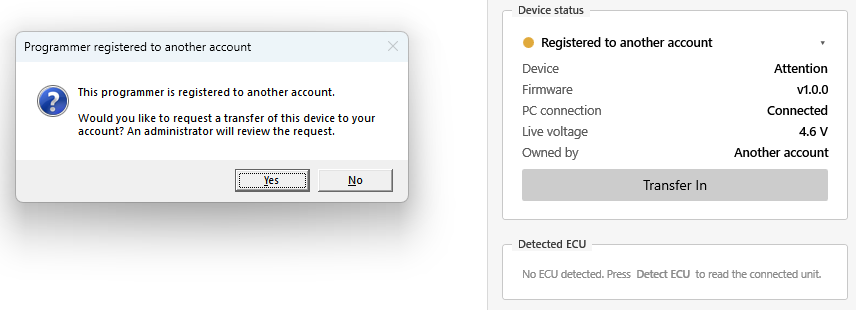
A programmer registered to another account. - Click Yes.
- You'll see Transfer requested. An administrator will review it; the device stays unavailable until then. Click OK.
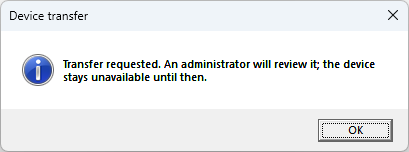
The transfer is requested.
If you click No, you can request the transfer later: click Transfer In in the Device status panel, and you'll see the same Transfer requested message.
Once Nizpro approves the request, the programmer is registered to your account and ready to use. If it isn't approved, it stays with its current account.
Passing a programmer on
There's no option to transfer a programmer out of your account. To pass one on, give it to the new holder. They connect it and request it as described above, and Nizpro reviews the request.
If it was the only programmer on a DIY account, that account goes back to a customer account once the transfer is approved. Any unused credits are hidden but stay on the account, and they reappear if a programmer is registered to it again. A dealer account stays a dealer account.
My Devices
The My Devices tab lists the programmers registered to your account.
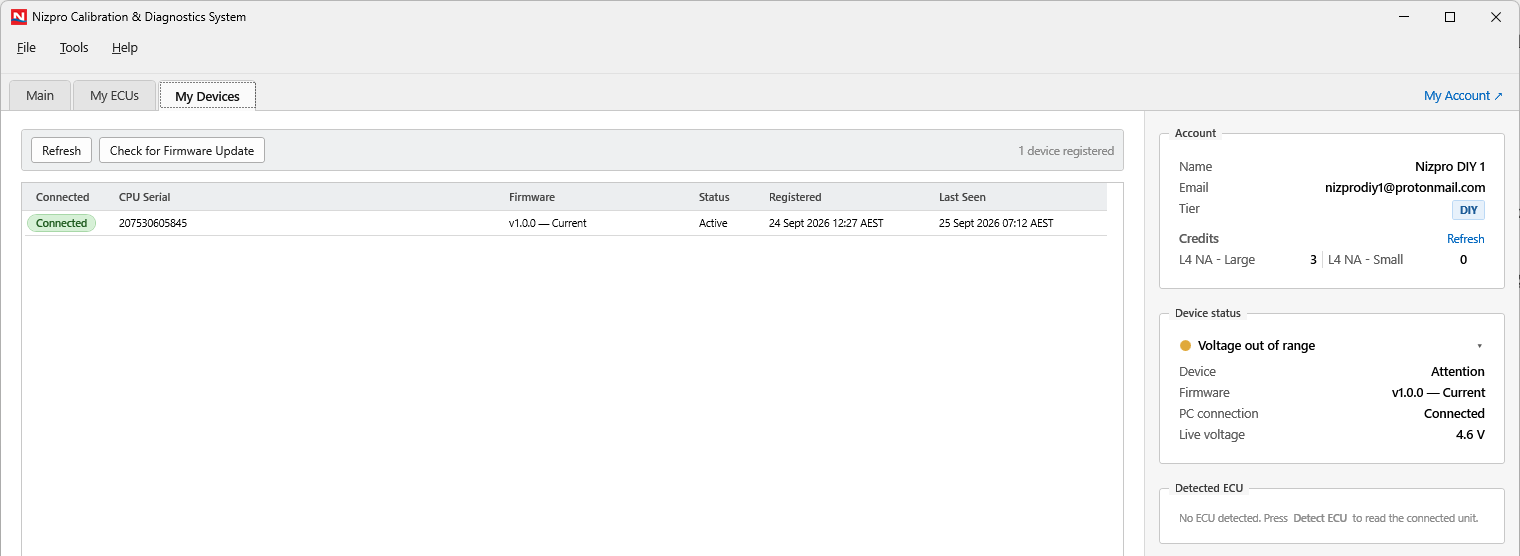
The orange light in this example is only for the live voltage reading. See Desktop interface overview.
Each programmer shows:
- Connected: marks the programmer connected to this computer.
- CPU Serial: the programmer's serial number.
- Firmware: the installed firmware version, and Current when it's up to date.
- Status: Active or Disabled.
- Registered and Last Seen: when it was registered to your account, and when NCDS last saw it.
The two buttons above the list:
- Refresh: reloads the list.
- Check for Firmware Update: checks for newer firmware for the connected programmer. Use it if Firmware doesn't show Current. Until the firmware is updated, the Device status light stays orange and Detect ECU is unavailable. The result also tells you whether you're running the latest desktop client.
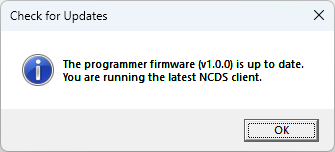
Everything is up to date.
Each firmware version and what it changes is listed in the Release Notes.
A disabled programmer
Nizpro can disable a programmer, for example if it's reported lost or stolen. A disabled programmer can't detect, flash or run diagnostics. The Device status panel shows Device disabled, its status in My Devices is Disabled, and Check for Firmware Update is unavailable.
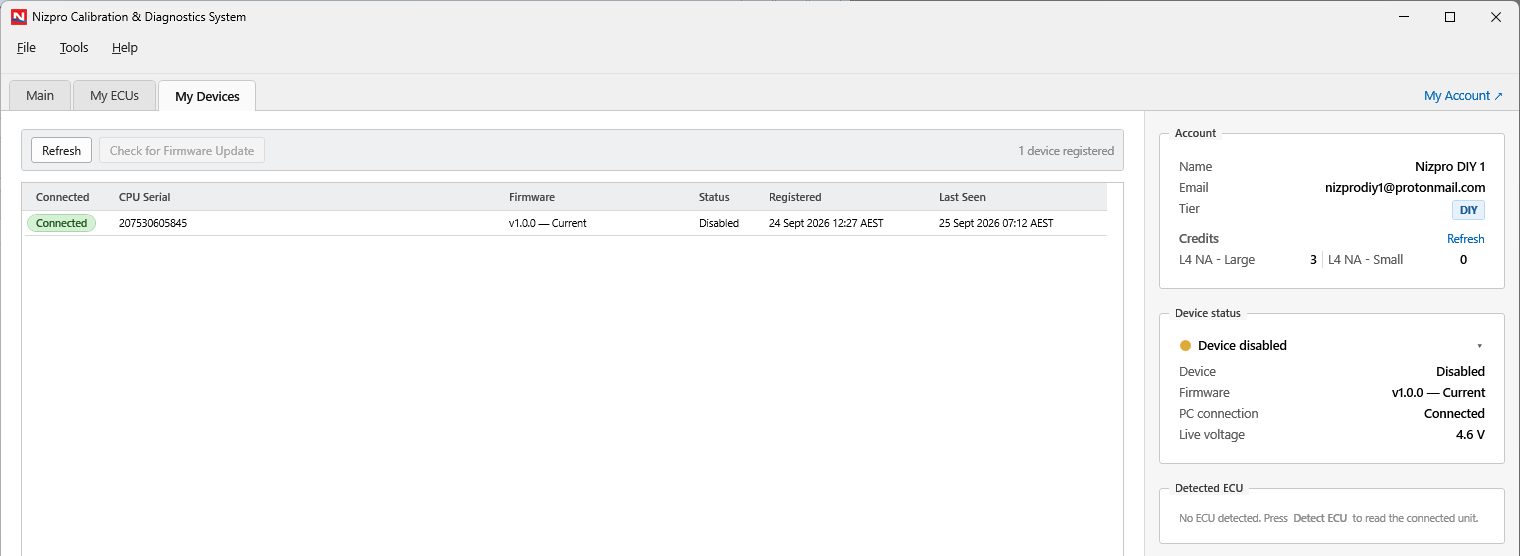
The block stays with the programmer, even if it moves to another account. To have it re-enabled, contact Nizpro at sales@nizpromarine.com.