Transferring ECU ownership
Move an ECU between accounts when an engine changes hands.
In this guide
- How transfers work
- Which transfers Nizpro approves
- Transfer In on the desktop (DIY)
- Transfer In on the desktop (dealers)
- Transferring during a write (dealers)
- Transfer Out on the desktop (DIY)
- Transfer Out on the desktop (dealers)
- Transfer Out in the web portal (all accounts)
- While a transfer is waiting for approval
- Related resources
How transfers work
A transfer moves an ECU from one account to another. It works in two directions:
- Transfer In: brings an ECU owned by another account onto yours, for example when you've bought an engine with a Nizpro calibration. A dealer can also bring it onto a customer's account. The ECU must be connected and detected, so this is done in the desktop client with a Nizpro programmer. If you don't have a programmer, a Nizpro dealer can do it for you.
- Transfer Out: sends an ECU you own to another account, for example when you sell the engine. You can do this from the desktop client or from the web portal.
Only the owner changes. Nothing is written to the ECU and no credits move. The new owner inherits the licence groups the ECU already has, at no cost.
A transfer records who holds the ECU in the system. It's a tracking record, not a statement of legal ownership. See How NCDS works.
If the new owner doesn't have an account
An ECU can only be transferred to an existing NCDS account. If the new owner doesn't have one yet, the ECU can still get onto their name:
- They create an account. The new owner creates their own NCDS account (see Creating and managing your account). Once it exists, you transfer the ECU out to their email address.
- They take the engine to a Nizpro dealer. The dealer can create an account for them and bring the ECU onto it with Transfer In (see Transfer In on the desktop (dealers)).
- A dealer sending out its own ECU can create the new owner's account as part of the transfer (see Transfer Out on the desktop (dealers)).
Selling the engine and want the tune removed first? Use Return to Stock instead of a transfer.
Which transfers Nizpro approves
Some transfers complete straight away. Others are sent to Nizpro for approval first. If Nizpro approves, the transfer completes. If it's rejected, nothing changes: the ECU stays with its current owner. See While a transfer is waiting for approval.
| Transfer | Result |
|---|---|
| By a dealer, to the dealer's own account or to a customer | Completes straight away |
| By a dealer, to a DIY account | Sent to Nizpro for approval |
| By a DIY account, in or out | Sent to Nizpro for approval |
| By a customer, out from the web portal | Sent to Nizpro for approval |
Transfer In on the desktop (DIY)
When you detect an ECU that another account owns, you can't write to it. The client offers ECU Transfer In instead.
- Detect the ECU. See Detecting an ECU. On the Main tab, Write ECU is greyed and ECU Transfer In is available. The Detected ECU panel shows the current owner, and Flash to Stock is greyed.
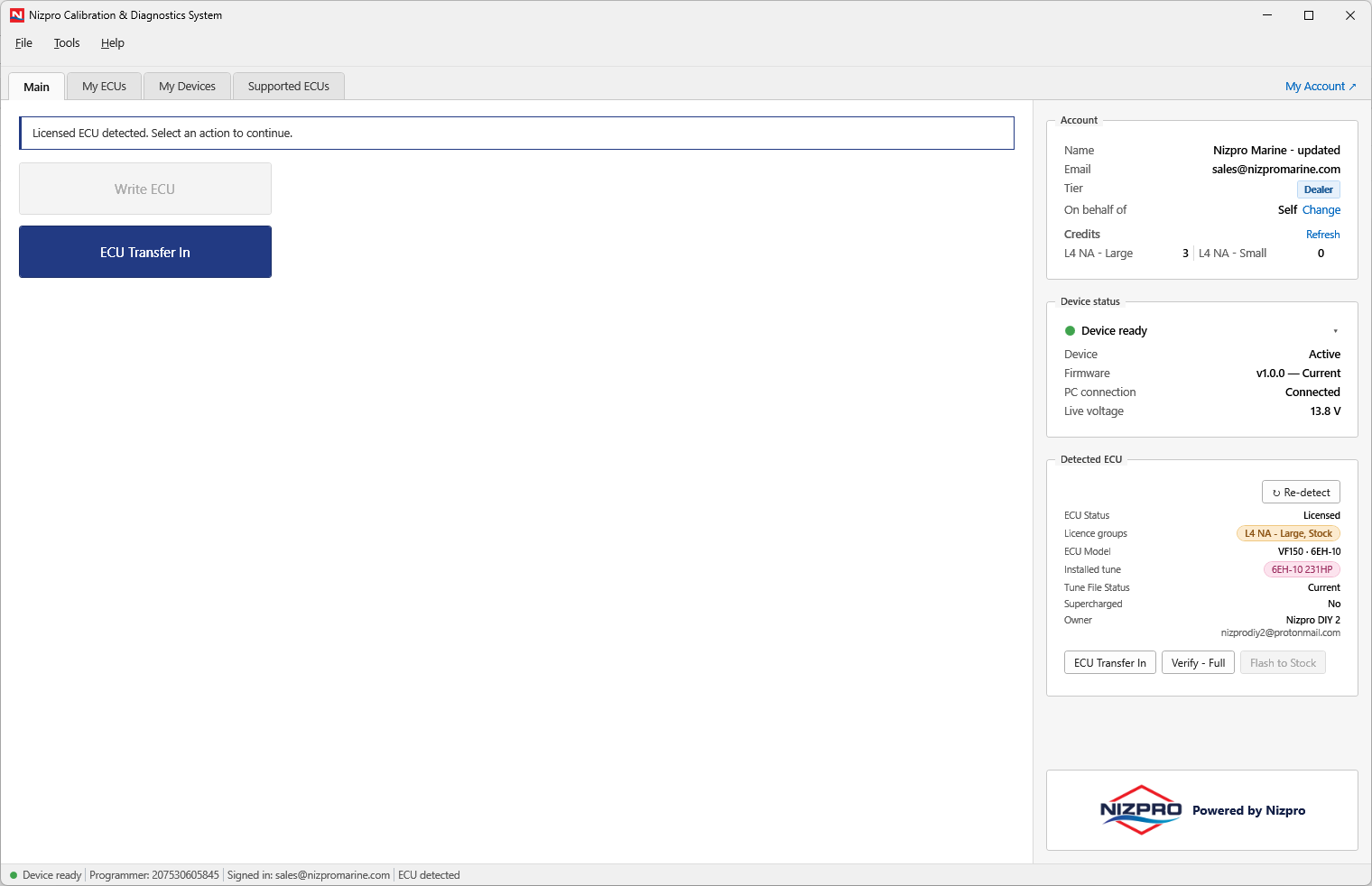
An ECU owned by another account: Write ECU is greyed and ECU Transfer In is available. - Press ECU Transfer In. It's on the Main tab and the Detected ECU panel, and in the Tools menu.
- Request ECU Transfer opens. The recipient is always Self, and there's a Notes box. It confirms: "I confirm taking ownership of this ECU. Ownership of the ECU and its licence will move to the receiving account." Press Request Transfer, or Cancel to stop.
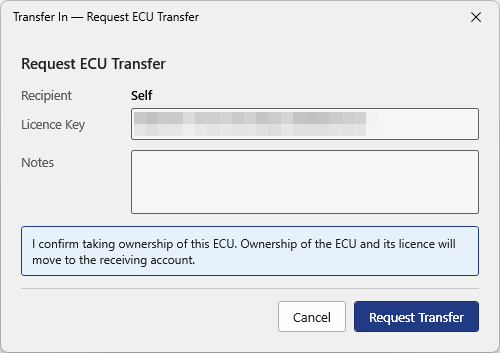
Request ECU Transfer. - The transfer is sent to Nizpro for approval. Press OK.
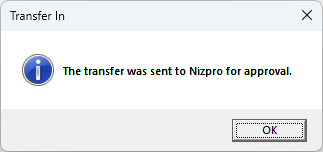
The transfer was sent to Nizpro for approval.
Writing stays unavailable until Nizpro approves the transfer. Once it's approved, detect the ECU again and Write ECU is available. See While a transfer is waiting for approval.
Transfer In on the desktop (dealers)
On a dealer account, you choose which account the ECU goes to: your own, or a customer's.
Only re-flashing a customer's ECU? If ECU Transfer In appears, check that On behalf of is set to the owner shown in the Detected ECU panel. If it isn't, the client assumes you want to transfer the ECU. See Detecting an ECU.
- Detect the ECU. As on a DIY account, Write ECU is greyed and ECU Transfer In is available (see Transfer In on the desktop (DIY)).
- Press ECU Transfer In. It's on the Main tab and the Detected ECU panel, and in the Tools menu.
- Request ECU Transfer names the recipient and asks you to confirm it, for example "Transfer this ECU to Self?". The recipient starts as whoever you nominated when you detected the ECU. It confirms: "I confirm taking ownership of this ECU. Ownership of the ECU and its licence will move to the receiving account."
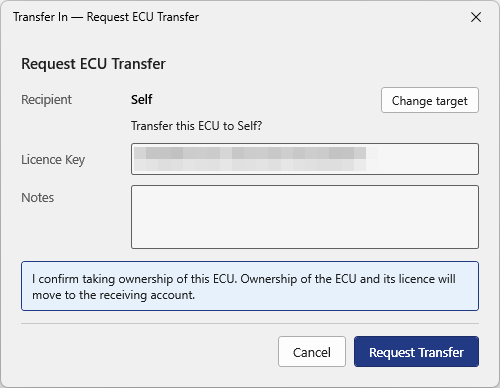
Request ECU Transfer on a dealer account, with Change target. - To send the ECU to a different account, press Change target. It opens Nominate ECU Owner, the same choice you make before flashing (see Flashing a tune). Choose one of the options, then press Confirm.
- Self (my account): the ECU comes onto your dealer account.
- Existing Customer: enter the email address of their NCDS account and press Look Up. The account name appears below the address so you can check it's the right one.
- New Customer: enter their first name, last name and email address to create their account.
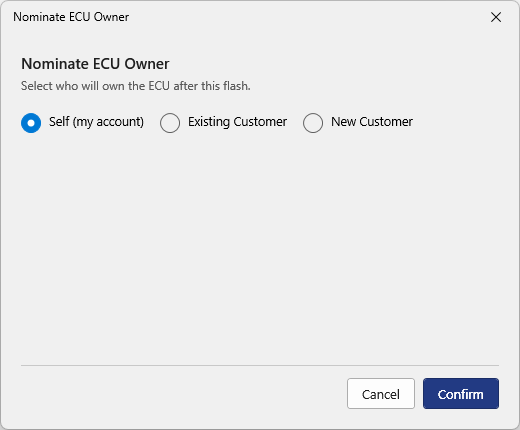
Nominate ECU Owner: Self (my account). 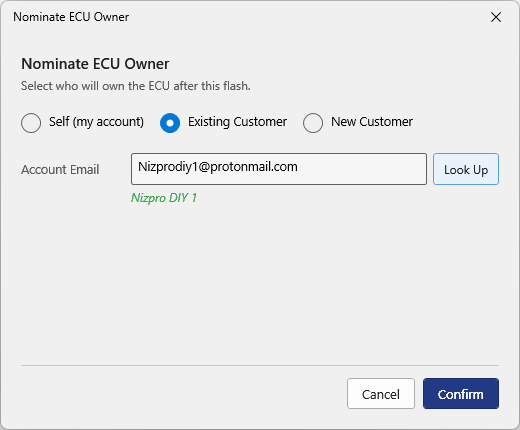
Nominate ECU Owner: Existing Customer, found by account email. 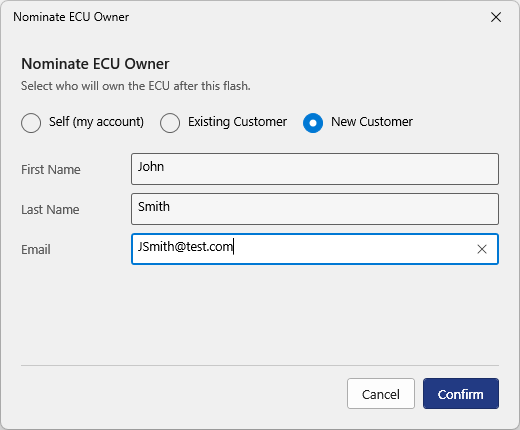
Nominate ECU Owner: New Customer, created here. - Press Request Transfer, or Cancel to stop. A transfer to your own account or to a customer completes straight away, and Write ECU becomes available. A transfer to a DIY account is sent to Nizpro for approval. Press OK.
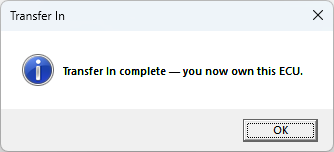
To your own account. 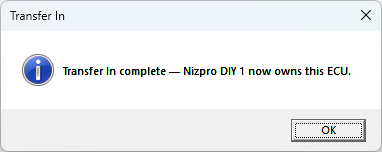
To a customer.
Transferring during a write (dealers)
A dealer can also move an ECU to a different account as part of a flash. On the Before Writing screen, use Change in the Owner section to set a different account. The Owner section then says the ECU will be transferred to that account, then written. See Flashing a tune.
Transfer Out on the desktop (DIY)
The My ECUs toolbar acts on the detected ECU, so connect and detect the ECU first. If the ECU isn't with you, use the web portal instead.
- Detect the ECU, then open the My ECUs tab. The detected ECU is at the top of the list, marked detected.
- Press ECU Transfer Out.
- Transfer Out opens. Enter the new owner's email address in Recipient Email and press Look Up. It must match an existing NCDS account. The account name appears below the address so you can check it's the right one. If there's no account for that address, see If the new owner doesn't have an account. You can add a note in Notes.
- Read the confirmation: "I confirm this transfer. Ownership of the ECU and its licence will move to the recipient account, and this cannot be undone by me. I confirm I have the authority to transfer this ECU." Press Transfer Out, or Cancel to stop.
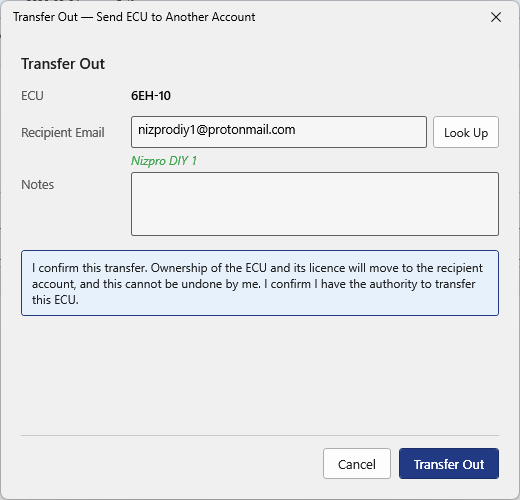
Transfer Out: look up the recipient, then confirm. - The transfer is sent to Nizpro for approval. Press OK. The ECU stays on your list, locked from your changes, until Nizpro has approved it.
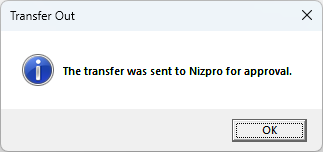
The transfer was sent to Nizpro for approval.
Transfer Out on the desktop (dealers)
As on a DIY account, the My ECUs toolbar acts on the detected ECU, so connect and detect the ECU first. If the ECU isn't with you, use the web portal instead.
- Detect the ECU, then open the My ECUs tab. The detected ECU is at the top of the list, marked detected.
- Press ECU Transfer Out.
- Transfer Out opens. Enter the new owner's email address in Recipient Email and press Look Up. If the account exists, its name appears below the address so you can check it's the right one. You can add a note in Notes.
If there's no account for that address, the dialog asks: "No account found for this email. Create a new customer?" Enter their First Name and Last Name and press Create & Use Customer. Transfer Out stays unavailable until you do.
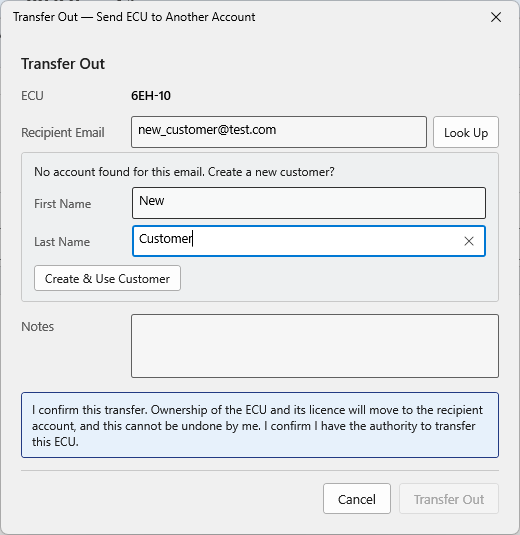
No account found for this email. Create a new customer? - Read the confirmation: "I confirm this transfer. Ownership of the ECU and its licence will move to the recipient account, and this cannot be undone by me. I confirm I have the authority to transfer this ECU." Press Transfer Out, or Cancel to stop.
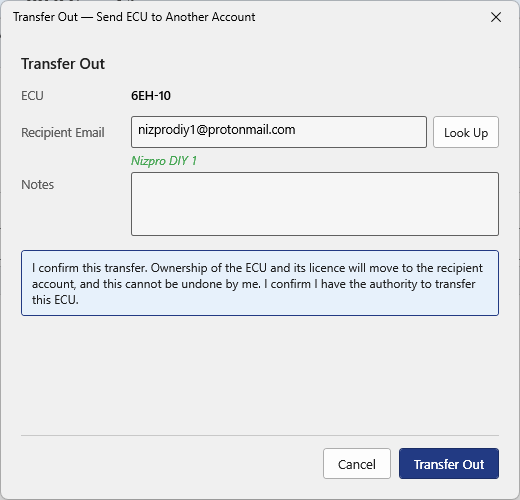
Transfer Out: look up the recipient, then confirm. - A transfer to a customer completes straight away and the ECU moves off your list. A transfer to a DIY account is sent to Nizpro for approval. Press OK.
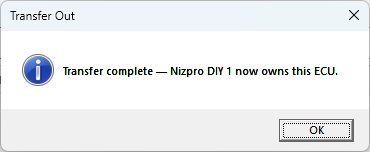
Transfer complete, Nizpro DIY 1 now owns this ECU.
Transfer Out in the web portal (all accounts)
The web portal follows the same steps as the desktop, in a browser. It doesn't need a programmer or the ECU, so you can use it wherever the ECU is. It's the only way for a customer without a programmer to transfer an ECU out.
- Sign in to the web portal and open My ECUs. See Using the web portal.
- Click Transfer Out on the ECU's row, or TRANSFER OUT... in the Actions card of its ECU Detail page.

Transfer Out on an ECU row. 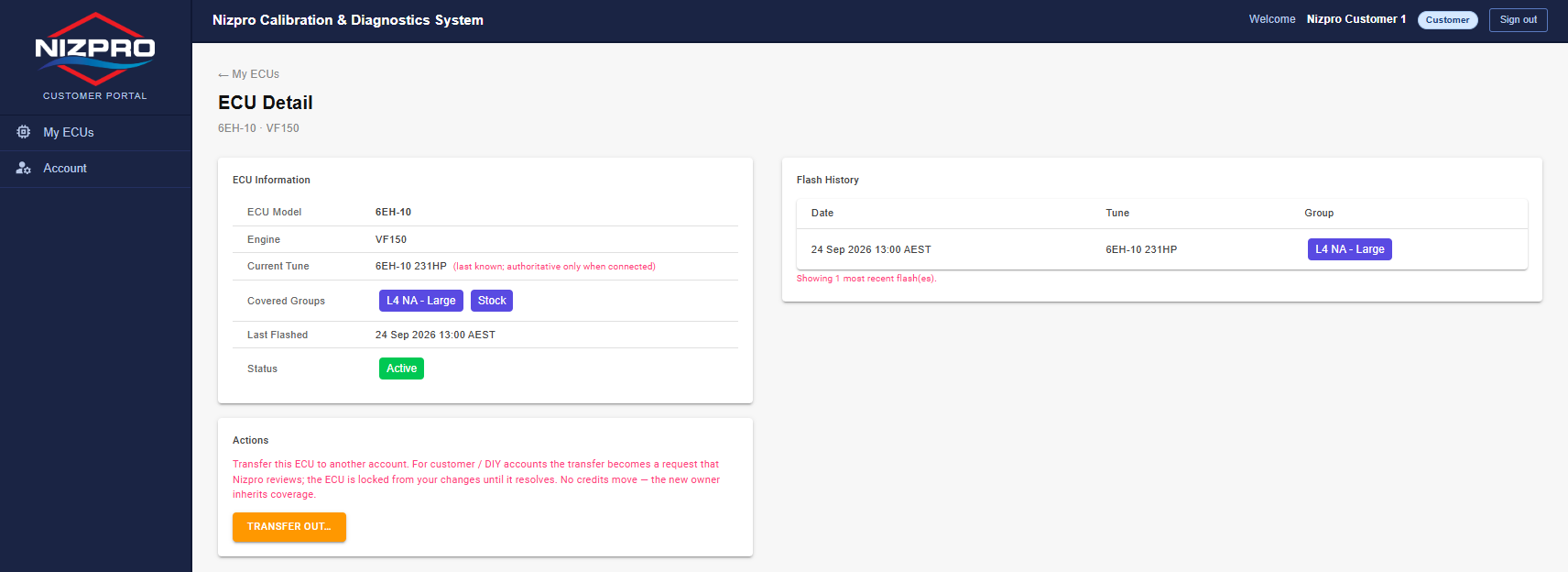
TRANSFER OUT... on the ECU Detail page. - Under Step 1: Recipient, enter the new owner's email address. It must match an existing NCDS account exactly (see If the new owner doesn't have an account). Press RESOLVE.
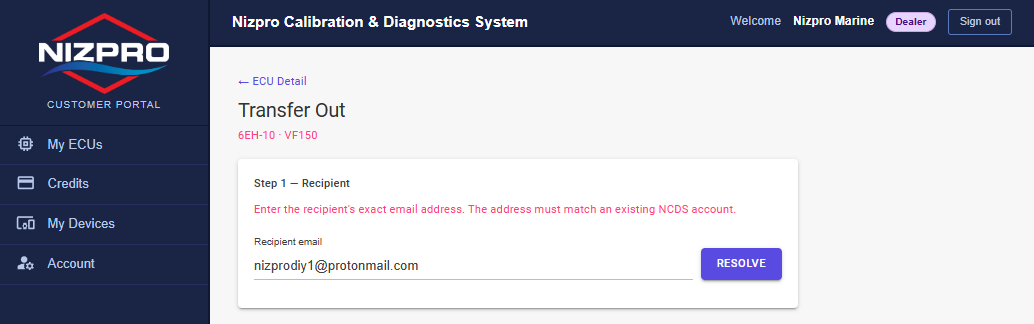
Enter the recipient's exact email address, then press RESOLVE. - The portal shows Recipient found with the account's name and email. Check it's the right account. Under Step 2: Acknowledgement, read the note and tick "I understand that this transfer is an administrative record and I am authorised to transfer this ECU."
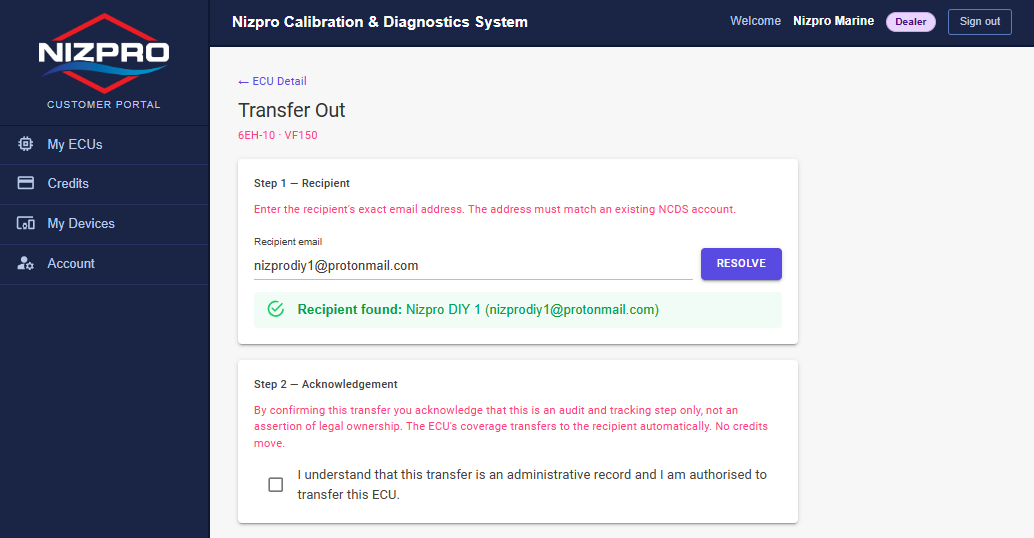
Recipient found, and the acknowledgement to tick. - Once the box is ticked, a note appears above the buttons saying what will happen, with CONFIRM TRANSFER and CANCEL. On a dealer account, the note says the transfer completes as soon as you confirm. On a customer or DIY account, it says: "This transfer will become a request for Nizpro to review. The ECU will be locked from your changes until the request resolves." Press CONFIRM TRANSFER, or CANCEL to stop.
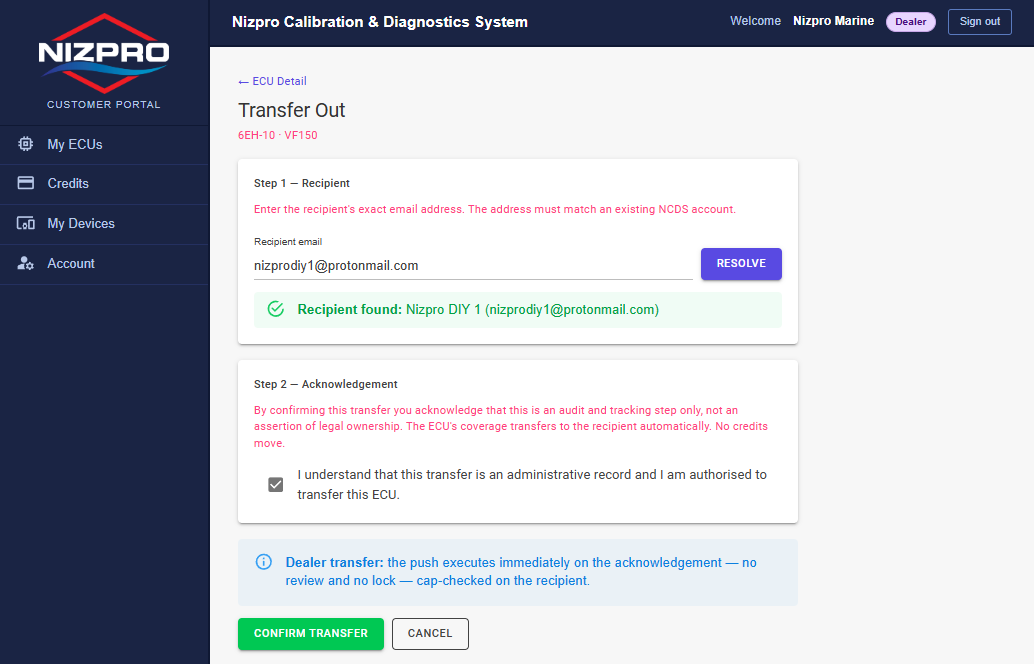
On a dealer account: the transfer completes when you confirm. 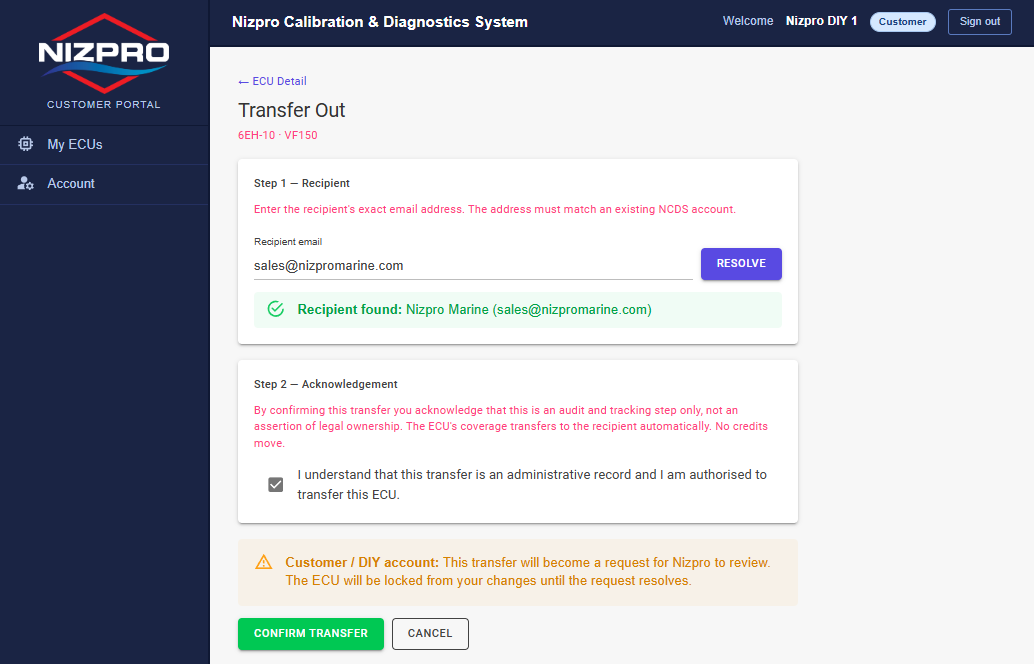
On a customer or DIY account: the transfer becomes a request for Nizpro to review. - The portal tells you how it resolved.
Dealers: the transfer completes straight away. The ECU leaves your list and appears under Recently Worked On with its new owner.
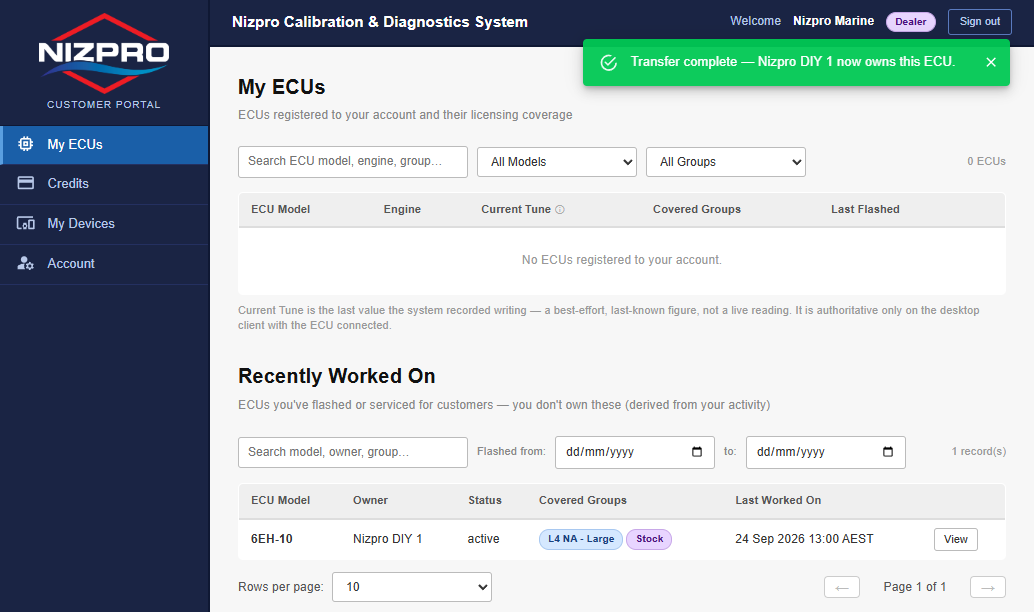
Transfer complete, Nizpro DIY 1 now owns this ECU. Customers and DIY: the transfer request is submitted to Nizpro. The ECU stays in your list marked Transfer pending, and Transfer Out is unavailable until the request is resolved.
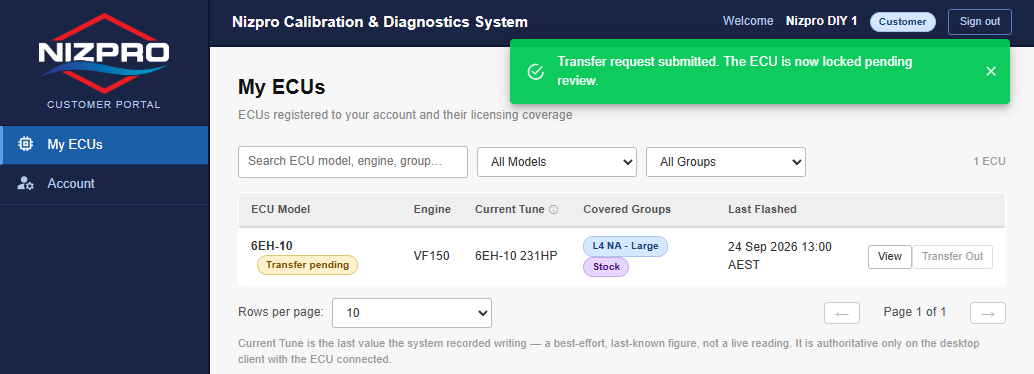
Transfer request submitted. The ECU is now locked pending review.
While a transfer is waiting for approval
- Transfer In: the ECU stays with its current owner, and you can't write to it. Once Nizpro approves, detect the ECU again and it's yours to flash.
- Transfer Out: the ECU stays on your account and is locked from your changes until Nizpro has approved or rejected the transfer. In the web portal it's marked Transfer pending (see Transfer Out in the web portal).
If the ECU is detected while its transfer is waiting, the Main tab shows "Action blocked: This ECU has an ownership transfer pending Nizpro review; it can't be written until the transfer completes." Write ECU and Flash to Stock are greyed.

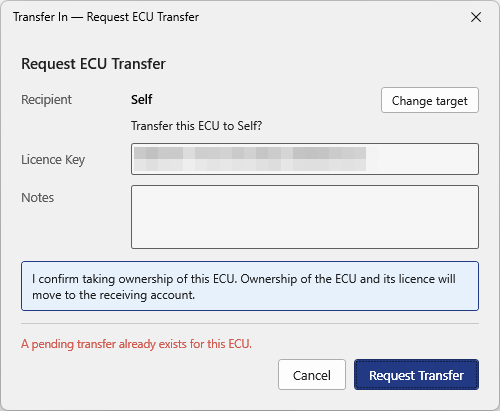
A second transfer can't be started while one is waiting. If a dealer tries to transfer the ECU in again, Request ECU Transfer shows "A pending transfer already exists for this ECU." Nizpro has to resolve the pending transfer before the ECU can be transferred again.
If the transfer is rejected, nothing changes. For anything you're unsure about, contact Nizpro at sales@nizpromarine.com.