Detecting an ECU
Read a connected ECU to find out what it is, then act on it. Desktop client, for DIY and dealer accounts.
In this guide
What detection does
Detection reads the connected ECU to find out what it is. It's the starting point for everything you do on the bench: flashing, verifying, returning to stock, and transfers all start with a detection.
Detection only reads. It never writes to the ECU, costs no credit, and changes nothing, so you can run it as often as you like.
Before you detect
Detect ECU is only available when your programmer is ready:
- the programmer is connected to this computer and assigned to your account,
- its firmware is current, and
- the supply voltage is in range.
If the readiness light isn't green, Detect ECU stays greyed, and the device status lines tell you what needs fixing. For what the light and voltage mean, see the Desktop client interface overview.
Run a detection
Press Detect ECU. On a dealer account you're asked who the work is for first. On a DIY account that's set to you automatically.
The client shows progress while it reads. You can cancel at any time and go back to the Main tab.
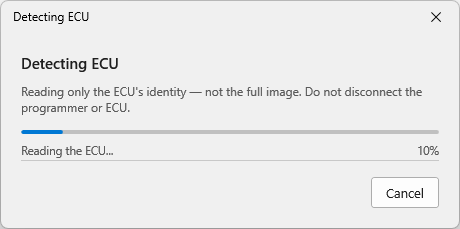
Detection runs in two steps: it identifies the model, then reads the ECU. What happens next depends on whether the model is recognised.
When the ECU is recognised
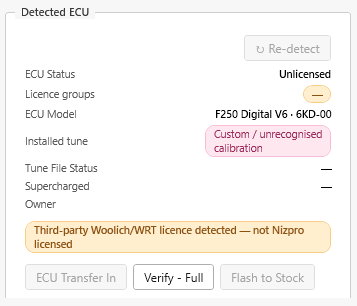
If the model is in the catalogue, the read completes and the Detected ECU panel fills in with what it found: the ECU model, the installed tune and its status, the ECU status, the licence groups it's licensed for, and the owner. Which buttons you get depends on the ECU's state.
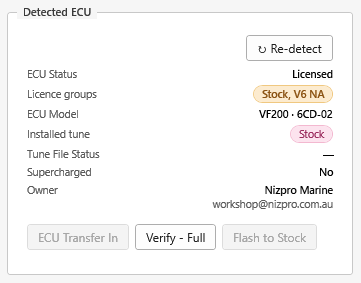
From here you can flash, verify, return to stock, or transfer, depending on what the ECU allows. See Flashing a tune for the write flow. To check that the ECU is running exactly its calibration, use Verify - Full: see ECU diagnostics.
If the ECU's model is no longer supported for tuning, the Main tab shows Action blocked and the write actions are greyed. See An ECU model that's no longer supported.
Check On behalf of when ECU Transfer In appears (dealers)
When you detect a customer's ECU, compare the Owner in the Detected ECU panel with On behalf of in the Account panel. If they don't match, the client treats the ECU as owned by another account: Write ECU is greyed and ECU Transfer In is offered instead, because it assumes you want to transfer the ECU to the account you're working on behalf of.
If you're only re-flashing the customer's ECU, don't transfer it. Press Change next to On behalf of and set it to the owner shown in the Detected ECU panel. Once they match, Write ECU is available for the re-flash.
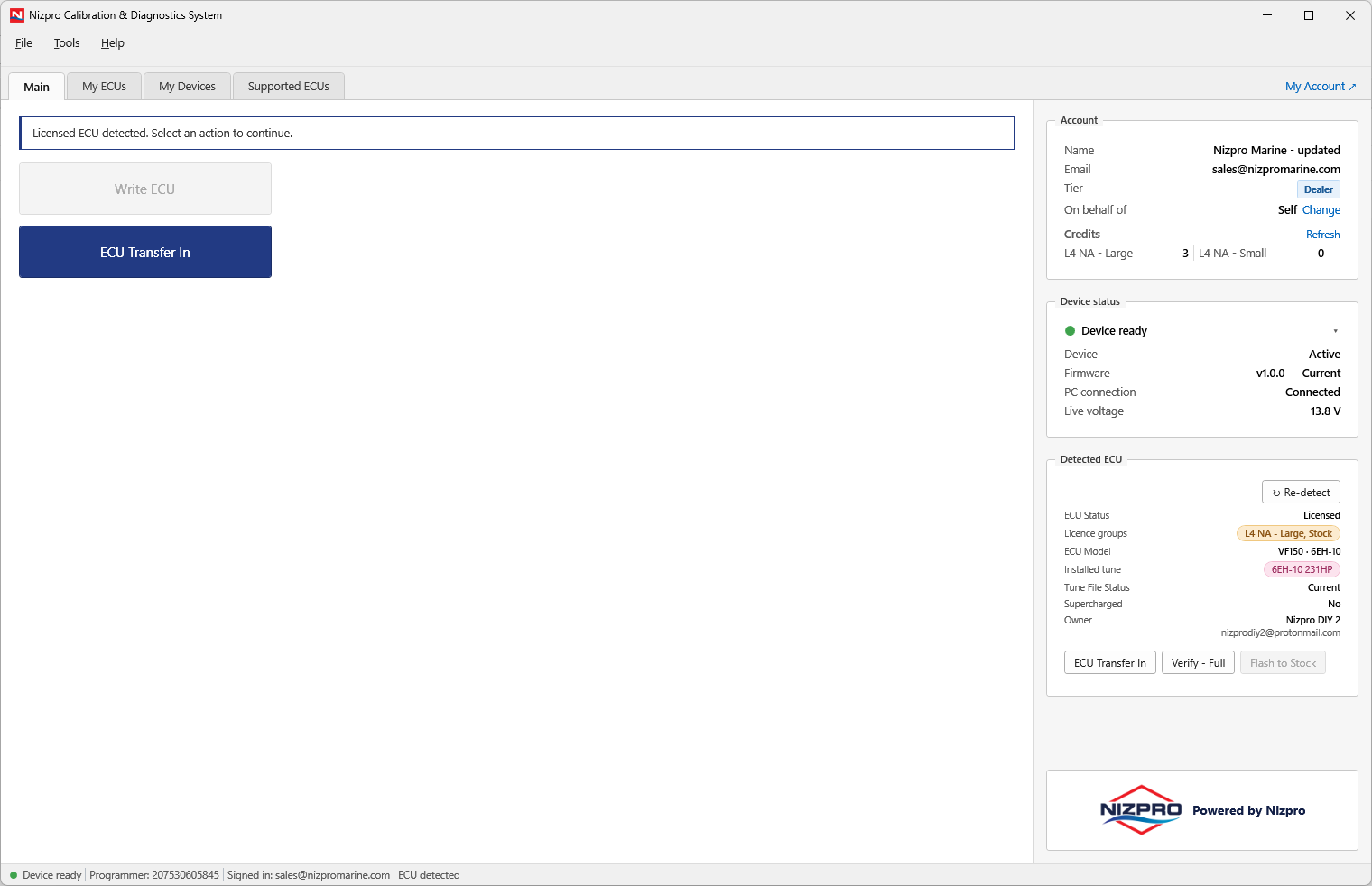
Only use ECU Transfer In when the ECU really is changing hands. See Transferring ECU ownership.
When the ECU is not recognised
Some ECUs return a valid model number that isn't in the catalogue yet. That's not a failure. It just means Nizpro hasn't added support for that model, so NCDS doesn't recognise it.
When that happens, the client blocks the action and asks whether to identify the ECU and submit it to Nizpro so support can be added.
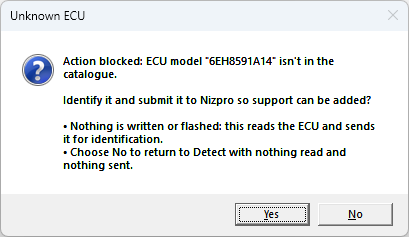
Choose Yes to identify and submit it, covered below. Choose No to return to Detect with nothing read and nothing sent.
Identify and submit an unknown ECU
Identifying an unknown ECU reads its bin using a model you pick as a starting point, then sends that read to Nizpro so they can add support. Nothing is written to the ECU at any point.
Pick the closest model to try
Pick the closest model from the list. It's a starting point for Nizpro, not a claim about what this unit is. Nizpro works out the real model from the read-back, not from what you pick here. The list opens on the reported number's family, which usually shares the same read protocol. You can widen it with Show all model families, and add a note for Nizpro if you want.
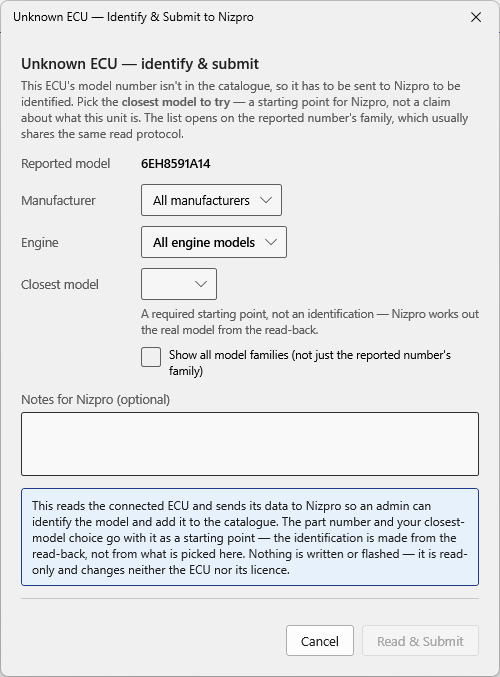
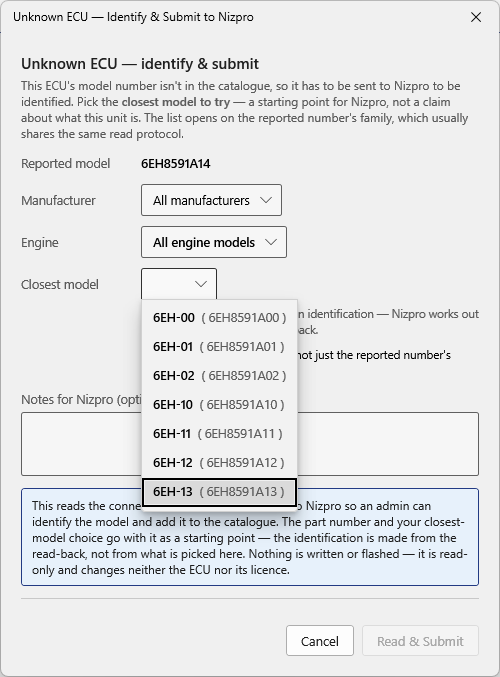
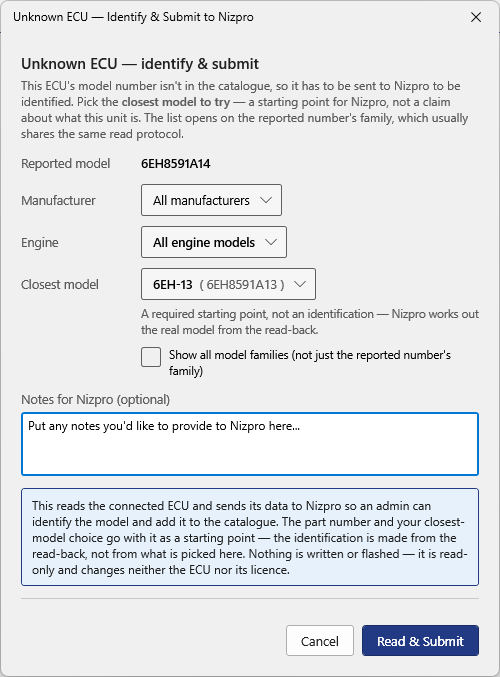
Read and submit
Click Read & Submit. This reads the connected ECU and sends its data to Nizpro. It's read-only: nothing is written or flashed, and it changes neither the ECU nor its licence.
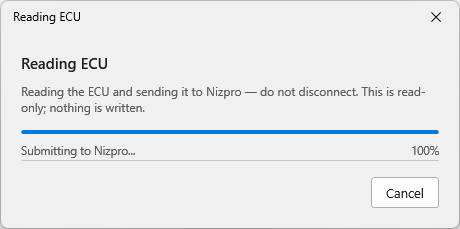
If the read doesn't complete, the model you picked might be the wrong starting point, so the client sends you back to the list to try another one or cancel.
After you submit
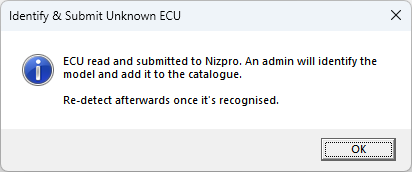
An admin will identify the model and add it to the catalogue. Until then, there's nothing more you can do with this ECU here. Re-detect once it's recognised and it resolves normally.
Legacy Woolich / WRT ECUs
Some ECUs carry a licence from the legacy Woolich / WRT system. NCDS recognises this when you detect the ECU. Nizpro can check the legacy licence and, if it's valid, grant the ECU a complimentary licence in NCDS.
When a legacy ECU is detected
As soon as the ECU is detected, Unrecognised Woolich ECU appears. It asks whether to send the ECU to Nizpro for recognition now.
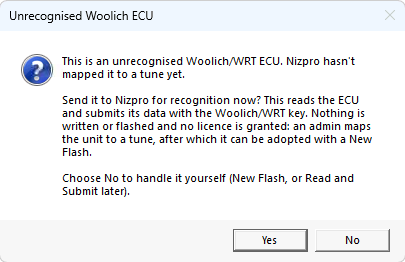
The Detected ECU panel shows Third-party Woolich/WRT licence detected, not Nizpro licensed, and the ECU Status is Unlicensed.
- Yes reads the ECU and sends its data to Nizpro, who check whether the legacy licence is valid. Nothing is written or flashed, and no credit is used. When it's sent, you'll see Woolich unit submitted to Nizpro. Click OK.
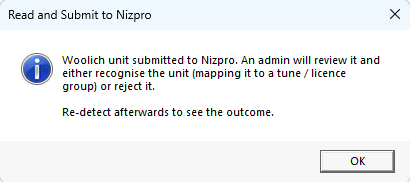
Woolich unit submitted to Nizpro. - No returns you to the Main tab. You can send the ECU later with Read and Submit to Nizpro, or flash it (see below).
Nizpro will contact you once they've reviewed the ECU. Then detect it again to pick up any complimentary licence.
Writing to a legacy ECU
Until Nizpro has recognised the ECU, pressing Write ECU shows Unrecognised Woolich/WRT Key, whether or not you've sent the ECU to Nizpro. It reminds you that flashing now is an ordinary New Flash: it uses a credit, and the ECU gets no coverage for the categories it was tuned in under Woolich.
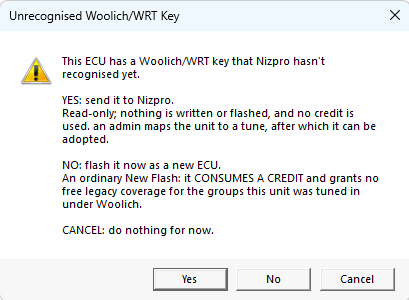
- Yes opens Read and Submit to Nizpro, which asks Read this ECU and submit it to Nizpro now? Nothing is written and no credit is used. Press Yes to read the ECU and send it to Nizpro, or No to stop.
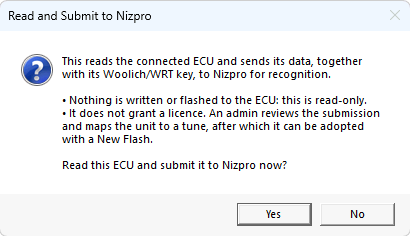
Read this ECU and submit it to Nizpro now? - No flashes it now as a New Flash, which uses a credit. See Flashing a tune.
- Cancel returns you to the Main tab without doing anything.
If the ECU is already with Nizpro
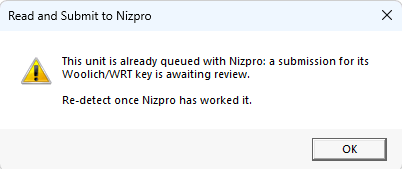
A legacy ECU only needs to be sent once. If you try to send it again while Nizpro is still reviewing it, you'll see This unit is already queued with Nizpro instead. Click OK, and detect the ECU again once Nizpro has contacted you.